
How do I create my first bundle?
Updated · SMART Bundles App & Upsells (E-TRADE PARTNER)
Open SMART Discounts in your Shopify admin, click Create new discount, choose one of the nine bundle templates and click Choose. Name the bundle, pick the products it shows on, adjust the offers, then click Create. The bundle goes live as soon as it's saved.
SMART Bundles App & Upsells is a free Shopify app for bundles, quantity breaks, free gifts and upsells.
Try it free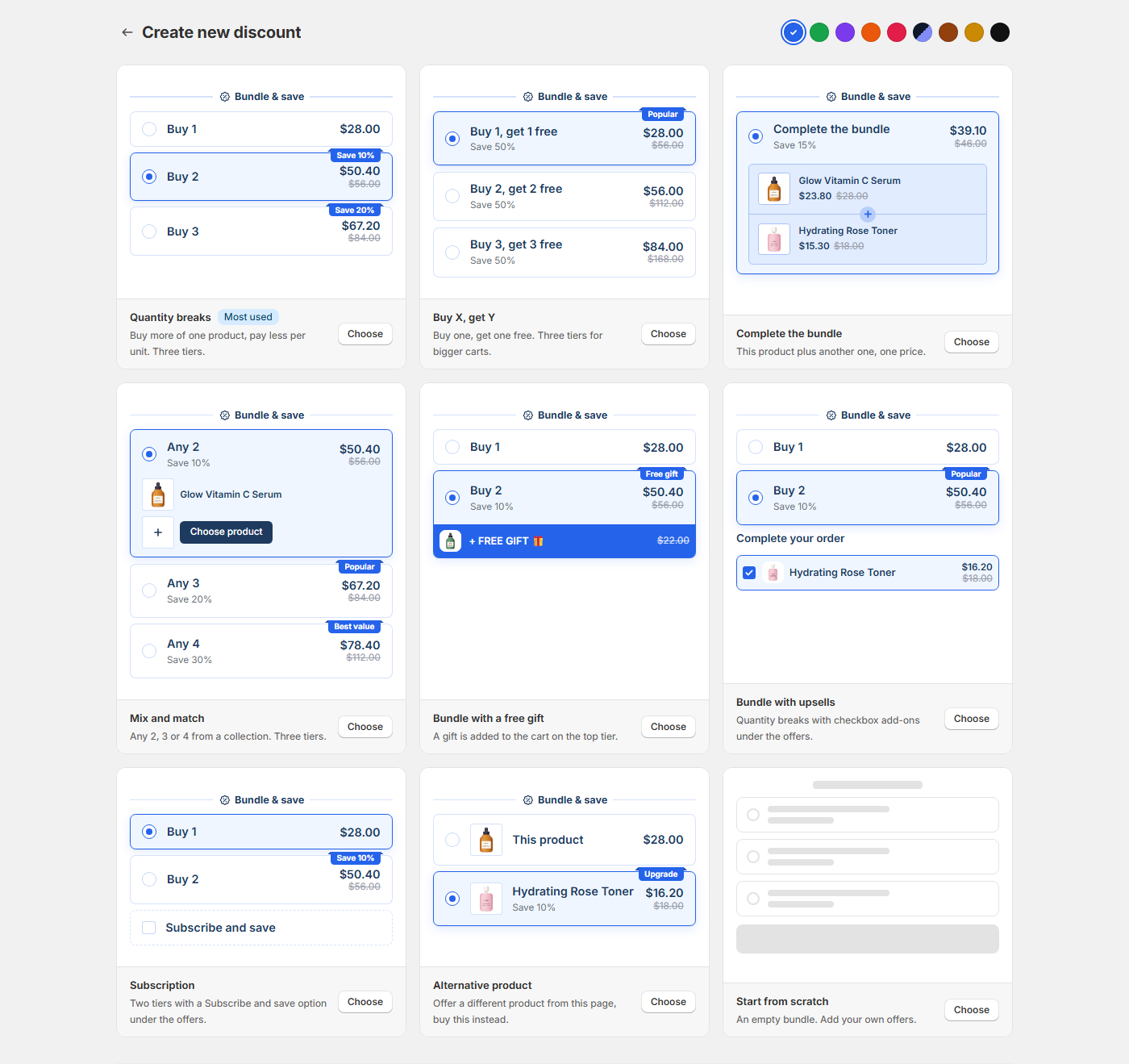
Pick a template
The bundle templates come first on Create new discount. Each card is a live preview of the widget, and the Color chips at the top recolor them all. The color you pick carries into the editor.
| Template | What it starts with |
|---|---|
| Quantity breaks (Most used) | Buy 1, Buy 2 at 10% off, Buy 3 at 20% off. See Quantity break tiers. |
| Buy X, get Y | Buy 1 get 1 free, Buy 2 get 2, Buy 3 get 3, of the same product. See Buy X, get Y offer. |
| Complete the bundle | This product plus one product you pick, 15% off. See Complete the bundle. |
| Mix and match | Any 2, 3 or 4 products from the collections you pick, at 10%, 20% and 30% off. See Mix and match. |
| Bundle with a free gift | Buy 1, and Buy 2 at 10% off with a gift you pick. |
| Bundle with upsells | Buy 1 and Buy 2, with a checkbox add-on under the offers titled "Complete your order". See Upsell add-ons. |
| Subscription | Buy 1 and Buy 2, with a Subscribe and save option. See Subscriptions in a bundle. |
| Alternative product | This product or a different product you pick, with an "Upgrade" badge. See Alternative product. |
| Start from scratch | An empty bundle. You add the offers. |
Set up the bundle
- In your Shopify admin, open Apps > SMART Discounts. On Home, click Create new discount.
- Pick a Color chip if you like, then click Choose on a template. If the app embed is off, a dialog asks you to turn it on: click Turn on app embed, or Continue without it and do it later (how).
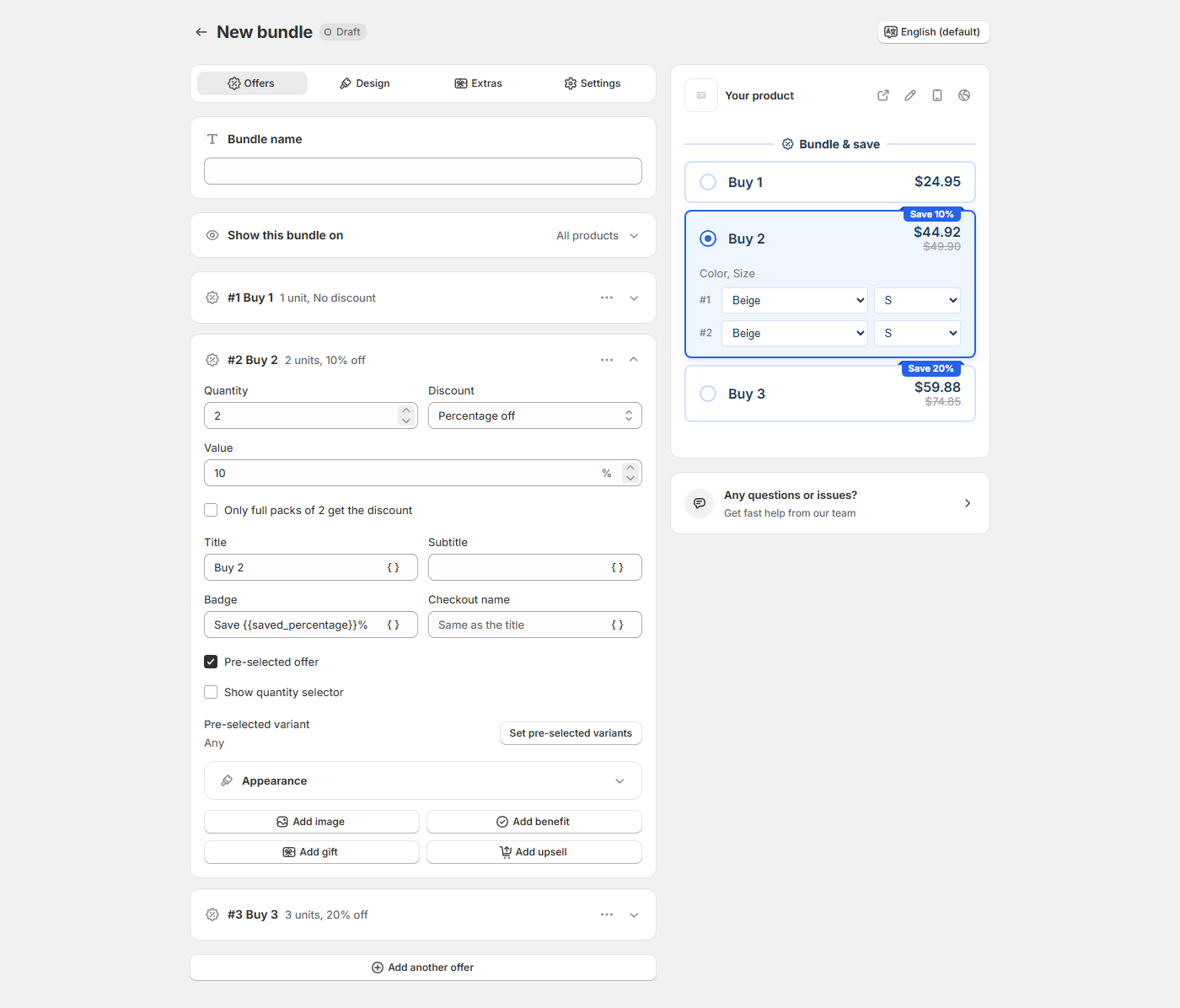
- The editor opens with four tabs, Offers, Design, Extras and Settings, and a live preview on the right.
- On Offers, enter a Bundle name. It's the name you see in the app and in Shopify admin > Discounts.
- Under Show this bundle on, keep All products (the default) or choose Products or Collections and select them. With Collections or All products you can tick Exclude products. See Target products and exclusions.
- Open each offer card to change its title, quantity, Discount and Value. Add another offer opens Add offer with the five kinds: Quantity breaks, Buy X, get Y, Complete the bundle, Mix and match and Alternative product.
- Pick any product the template leaves empty: the second product in Complete the bundle, the gift, the upsell add-on or the alternative product.
- Optional: style the widget on Design (how), add extras such as a countdown on Extras, and check Active dates, Eligibility and Combines with on Settings.
- Click Create in the save bar. You see Bundle created.
- Open a product the bundle targets in your store and check the widget.
After the first save, the top of the editor has Activate or Deactivate, Delete (it cannot be undone) and Duplicate. Later edits go live when you click Save.
Limits and edge cases
- No draft save. A bundle is live from the moment you save it. To prepare one in advance, set a future start in Settings > Active dates first; it then shows as Scheduled.
- Always automatic. Bundles have no discount code, no usage limit and no once-per-customer limit. For those, use one of the cart discount types.
- Whole products. A bundle targets products, collections or all products. Every variant of a targeted product shows the widget and counts.
- One bundle per product page. If two bundles target the same product, the editor warns you and only one widget shows.
- Shopify's limit. Shopify allows 25 active automatic discounts per store, app discounts included (Shopify Help Center). Every active bundle counts. Past the limit the app shows "Only 25 automatic discounts can be active at once."
- Unique names. If saving fails because the title must be unique, another automatic discount in your store already uses that name.
- POS. New bundles have Exclude POS ticked. See POS support.
Build your first bundle in minutes
SMART Bundles App & Upsells is free on the Shopify App Store, with all nine templates and every extra included.
Install free on ShopifyFrequently asked questions
›Which template should I start with?
For more units of one product, Quantity breaks. For different products sold together, Complete the bundle. For any items from a collection counted together, Mix and match. Compare them on the templates page.
›Can a bundle use a discount code?
No. Bundles are always automatic. For a code, use Free gift or one of the cart discount types.