
How do I set up a Complete the bundle offer?
Updated · SMART Bundles App & Upsells (E-TRADE PARTNER)
Add a Complete the bundle offer (the editor also calls it a product bundle): This product plus the products you pick, up to 6 products in total, sold together at one discount. Checkout discounts only complete sets, and the offer hides on the pages of the products you added to it.
SMART Bundles App & Upsells is a free Shopify app for bundles, quantity breaks, free gifts and upsells.
Try it free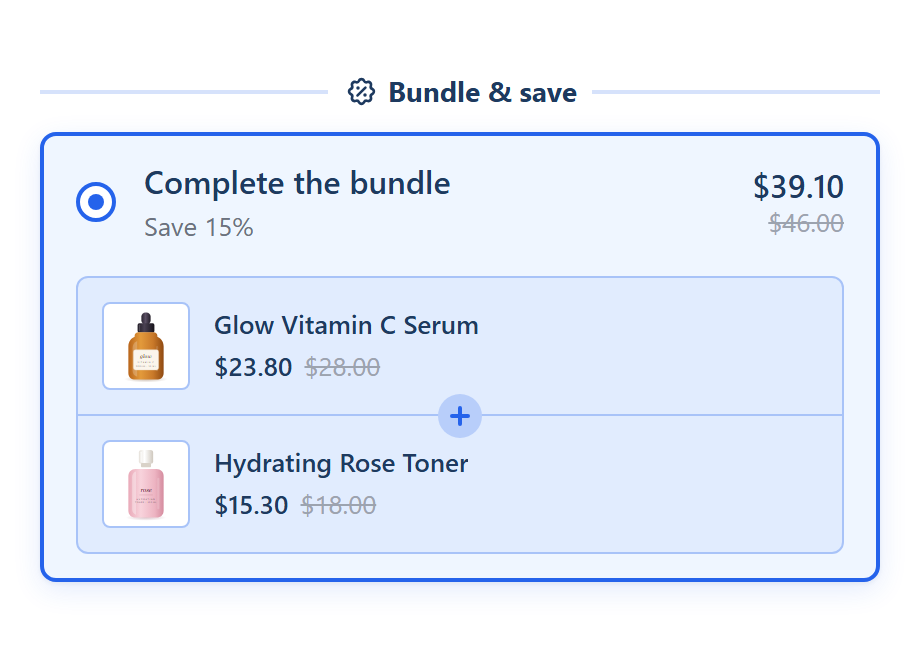
Set it up
- In SMART Discounts, click Create new discount and pick Complete the bundle. The template has one offer at 15% off with two rows: This product and an empty product row. In an existing bundle, click Add another offer > Complete the bundle instead.
- On the Offers tab, set Show this bundle on to your main product or products. This matters at checkout (see below).
- Open the empty row and click Pick a product. Choose variants in the picker, or later with Edit variants. Change product swaps it.
- Set each row: Quantity, Pre-selected variant (Any or one variant), Pick a variant for each unit (needs a quantity above 1 and variant pickers on), Show price, Name shown in the bundle, Tag (optional) (a small label, up to 40 characters) and Image (optional). Move up and Move down change the order.
- Click Add another product for more rows. A bundle holds at most 6 products, This product included. The This product row can be moved but not removed.
- Set the Discount: any of the six types, from Percentage off to Fixed total price. Or tick Different discount per product to give each row its own per-item discount (No discount, Percentage off, Amount off each item or Fixed price per item).
- Under the offer's Appearance, choose Show quantity badge on products and Show products only when the offer is selected. The panel's look is on the Design tab > Element styles > Product bundle.
- Click Create or Save.
How checkout prices it
- Complete sets only. The discount applies only when the cart holds every row in its quantity. A cart with part of the set gets nothing from this offer.
- Repeats per set. Two of every row make 2 sets, and both are discounted. Extra units outside a complete set pay full price.
- Per item or per set. Per-item types apply to each row's units. Amount off total and Fixed total price apply once per set across all its units, split over the lines by their price. A fixed total never raises a price.
- What fills This product. At checkout, This product can be any product in Show this bundle on, other than the products you picked. With All products, any product plus your picked products completes a set, so narrow the target to the main products.
- The cart counts, not the click. A complete set gets the discount however the items reached the cart, unless Apply the discount only to items added through the widget is on (Settings tab > Discount rules).
- All or nothing. If another offer gives a bigger saving on one of the set's lines, the whole set's discount is dropped, never split across some lines.
Where the offer shows
- It is hidden on the product page of any product you picked as a row, so a shopper never sees "socks + socks".
- It is hidden while a picked product can't be sold: deleted, unpublished, not sold in the shopper's market, or every allowed variant sold out.
- Shoppers can choose variants but can't swap the products. For a free choice of products, use a Mix and match offer.
- Show quantity selector lets shoppers buy several complete bundles at once.
- The products are added as separate cart lines with your theme's Add to cart button. Buy it now is hidden while this offer is selected.
- This offer is always a one-time purchase, with no subscription option.
More on the offer: Complete the bundle and Shopify Bundles app limits.
Sell products together at one price
SMART Bundles App & Upsells is free on the Shopify App Store, with product bundles and every other offer type included.
Install free on ShopifyFrequently asked questions
›Why doesn't the bundle show on the second product's page?
A Complete the bundle offer is hidden on the pages of the products you picked as rows. Shoppers see it on the main product's page.
›Does the app create a bundle product with its own inventory?
No. Each product stays its own product and cart line, with its own stock. The app only prices them together at checkout.
›The customer bought only one of the two products. Why no discount?
The offer discounts complete sets only. Every row must be in the cart in its quantity.