
Complete the bundle: this product plus the items that go with it
Updated · SMART Bundles App & Upsells (E-TRADE PARTNER)
A Complete the bundle offer sells the product on the page together with other products you choose, up to six products in total, at one bundle price. Shoppers see every item in the widget, pick variants, and add the whole set with one click on your theme's Add to cart button. The discount applies only to complete sets.
SMART Bundles App & Upsells is a free Shopify app for bundles, quantity breaks, free gifts and upsells.
Try it freeOn this page
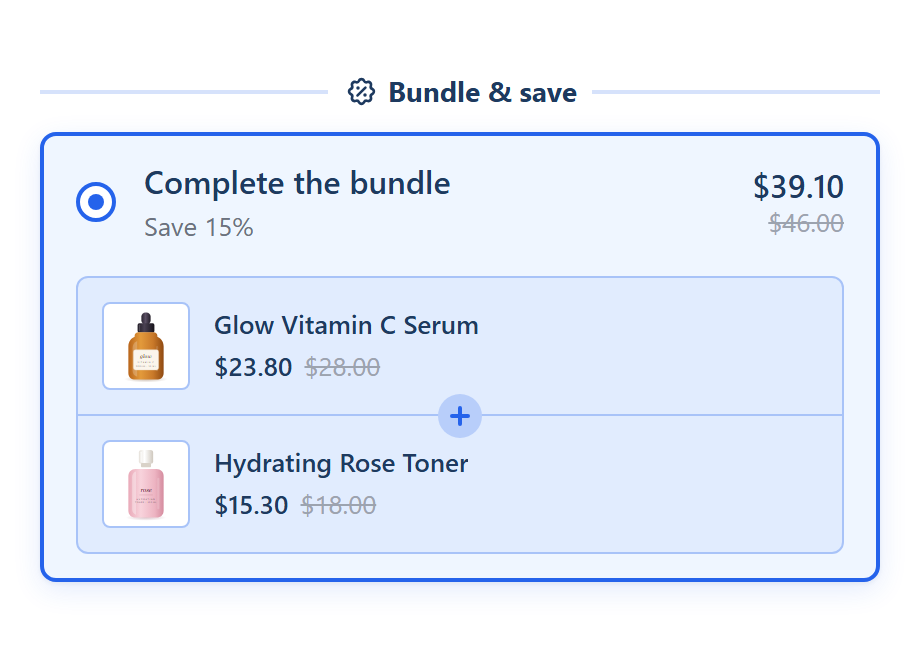
What the shopper sees
- A product bundle panel on the offer card: each product with its image, name and a variant picker, and its discounted price next to the original, struck through.
- Plus signs and dividers between the products, stacked or in a grid. Design tab > Element styles > Product bundle sets the Layout, Products per row (desktop and mobile), Divider, Plus sign, image size and corners, and Link product bundle items to their pages.
- Optional per product: a small tag ("Best seller"), its own name and image in the bundle, and whether its price shows.
- Show quantity badge on products puts "x2" on the image of a product that comes twice.
- One click adds the set. The theme's Add to cart button adds one cart line per product. While a multi-product offer is selected, the theme's Buy it now button is hidden so the set isn't split.
- Several sets. With Show quantity selector, shoppers buy several complete bundles at once.
Products in the bundle
- Up to 6 products per offer, including This product, the product on the page, which can be moved but not removed. Add another product adds a slot; Move up and Move down change the order.
- This product follows the page. With Show this bundle on set to All products or a collection, every targeted product page offers itself plus the products you fixed.
- Per product: Quantity, Pre-selected variant (Any, or one variant), Pick a variant for each unit when the quantity is above 1, Show price, Name shown in the bundle, Tag (optional) and Image (optional). Edit variants limits which variants a product can use.
Pricing
- One discount for the set: No discount, Percentage off, Amount off each item, Amount off total, Fixed price per item or Fixed total price. The template starts at 15% off.
- An exact set price. Fixed total price charges your amount for the whole set. The app splits it across the products' lines, as it does with Amount off total.
- A different discount per product. Tick Different discount per product and each product gets its own: No discount, Percentage off, Amount off each item or Fixed price per item. The bundle-wide field then reads "Set per product below".
- Per currency. For amounts and fixed prices, the globe button (Prices per currency) sets your own amount in each currency you sell in. Other currencies are converted.
How the discount applies
- Complete sets only. The app's Shopify Function builds sets from what's in the cart. A set that is missing a product gets no discount.
- All or nothing. If another offer of the bundle takes one of the set's lines, the set's discount is dropped whole, so no part-discount is left on the other items.
- Repeats per set. Two complete sets in the cart get the discount twice.
- The cart decides. The products count however they were added, unless you tick Apply the discount only to items added through the widget (Settings tab > Discount rules).
When the offer is hidden
- On the page of one of its fixed products. Put the bundle on the main product: the offer doesn't show on the pages of the products you added to it.
- While a fixed product is sold out or no longer available.
- Outside the bundle's target and markets, and on products with more than 250 variants.
Limits
- No bundle product. The app doesn't create a bundle product, SKU or linked inventory. The items stay separate products and cart lines, with their own stock.
- Fixed products. Shoppers can choose variants but can't swap products. For a free choice from a set, use Mix and match.
- No subscriptions on this offer: Allow subscription isn't offered on Complete the bundle.
- Automatic only, like every bundle: no code, no usage limit, no customer tag targeting. It can be limited by market and can exclude B2B and POS.
How to set it up
- Turn on the SMART Discounts app embed (Deal widget under App embeds in your theme editor). See Turn on the app embed.
- In SMART Discounts, click Create new discount and choose Complete the bundle: this product plus one more, 15% off.
- On the Offers tab, set Show this bundle on to the main product or a collection, pick the product for the second slot, and use Add another product for more.
- Set the discount, check the preview, then click Create.
Step-by-step help: Set up a Complete the bundle offer, Variant pickers and Target products and exclusions.
Related guides
- Shopify Bundles app limits
- How to offer mix and match bundles on Shopify
- How to combine discounts on Shopify
- Moving from another bundle app
Sell the set, not just the item
Install SMART Bundles, choose the Complete the bundle template and add the products that belong together. Free, with everything included.
Install free on ShopifyFrequently asked questions
›Does the app create a bundle product with its own inventory?
No. Each item stays its own product and cart line, and Shopify tracks its stock as usual. The app only discounts the complete set.
›Why doesn't the bundle show on the add-on product's page?
A Complete the bundle offer is hidden on the pages of the products you added to it, and while one of them is sold out. Show it on the main product.
›Can each product in the bundle have its own discount?
Yes. Tick Different discount per product and set a percentage, an amount off or a fixed price for each one.