
Mix and match: any N products from a set, one discount
Updated · SMART Bundles App & Upsells (E-TRADE PARTNER)
A Mix and match offer in SMART Bundles discounts any N products from the products or collections you choose, counted together. Shoppers can pick the other items right in the product page widget, or add each one from its own page. Either way, the discount is applied automatically in the cart and at checkout.
SMART Bundles App & Upsells is a free Shopify app for bundles, quantity breaks, free gifts and upsells.
Try it freeOn this page
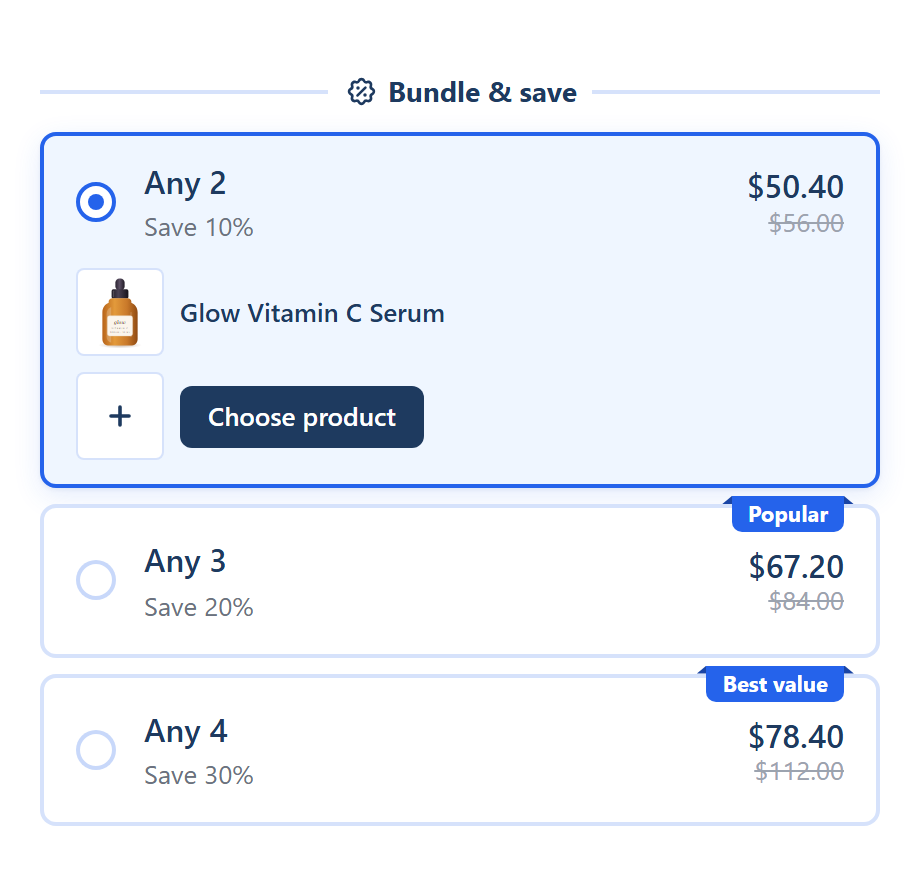
What the shopper sees
- Tier cards such as Any 2, Any 3 and Any 4 on every product page the bundle targets, each with its price, struck price and badge.
- Slots to fill. With Shoppers pick the products on (the default for new offers), the selected card shows one row per item. The first is the product on the page. The others start empty with a Choose product button.
- A product list. Choose product opens the products of the set, with an optional search and sort (Featured, Price: low to high, Price: high to low, Name). Each product has a Choose button, and a chosen product gets its own variant picker in its slot.
- A clear next step. Until every slot is filled, Add to cart waits and the widget says how many are left, for example "Choose 2 more products".
- One click to add. Your theme's Add to cart button adds every chosen product as its own cart line.
Without Shoppers pick the products, a card adds that many units of the product on the page. Other products of the set still count when the shopper adds them from their own pages.
Picker settings
These sit under Shoppers pick the products on each Mix and match offer:
| Setting | Choices | Default |
|---|---|---|
| Empty slots | Block Add to cart until every slot is filled, Fill them with this product or Add only the chosen products | Block Add to cart |
| Slots start | Empty or With this product (shoppers can swap it) | Empty |
| Card price | Count empty slots as this product or Count only chosen products | Count empty slots as this product |
Which products shoppers can pick
- The set is your target. The list comes from Show this bundle on (Products, Collections or All products), minus anything in Exclude products. Pick several collections and every product in any of them counts toward the same tiers.
- Up to 250 products. With Collections or All products, shoppers can pick from the first 250 products, as the editor notes.
- Only what can be bought. Sold-out products are left out of the list. Products that aren't on the Online Store or aren't sold in the shopper's market are skipped. Product names show in the shopper's language.
- Saved with the bundle. The list is built when you save. A product you add to a collection later shows in the picker after you save the bundle again. Stock is checked live.
How the discount is worked out
- Everything in the set counts together, across products and variants, and the highest tier reached applies.
- Full packs by default. Only full packs of N get the discount is ticked on new Mix and match offers. Only full packs are discounted, and units beyond the last full pack pay full price. Untick it to price every unit at the highest tier reached.
- Six discount types: No discount, Percentage off, Amount off each item, Amount off total, Fixed price per item and Fixed total price (an exact price per pack).
- The cart decides. The picker settings only change what the widget shows and adds. The Function discounts the products in the cart, unless you tick Apply the discount only to items added through the widget.
- Show quantity selector lets shoppers buy several packs of a tier.
Style the picker
Design tab > Element styles > Product picker: List or Grid, Products per row (and Products per row on mobile), Default sort, Show search, Show sort, Show product names, Link product names to their pages, Show the price on each product, Show slots before the offer is selected, Show how many products are left and an Empty slot image. Every text, such as "Choose product", is editable in Settings tab > Widget text.
Mix and match or Complete the bundle?
- Mix and match: the shopper chooses any N from a set. Good for "any 3 candles" or "build your 4-pack of socks" from a collection.
- [Complete the bundle](/features/complete-the-bundle): you fix the products, and the shopper only picks variants. Good for "this camera plus this case".
Limits
- No separate builder page. The picker lives inside the product page widget.
- No subscriptions on an offer whose shoppers pick the products: Allow subscription isn't offered there.
- Automatic only. Bundles have no codes, usage limits or customer tag targeting. They can be limited by market and can exclude B2B and POS.
- One bundle per product page. If another bundle targets the same product, the page shows one of them.
- Separate products. The app doesn't create a bundle product or sync bundle inventory; each chosen item stays its own product and cart line.
How to set it up
- Make sure the SMART Discounts app embed is on (Deal widget under App embeds in your theme editor). See Turn on the app embed.
- In SMART Discounts, click Create new discount and choose the Mix and match template: Any 2, 3 or 4 at 10, 20 or 30% off, shown on collections.
- On the Offers tab, pick the collections under Show this bundle on and adjust the tiers and picker settings.
- Style the picker on the Design tab, then click Create.
Step-by-step help: Set up a Mix and match offer, Target products and exclusions, Variant pickers and Widget design and custom CSS.
Related guides
- How to offer mix and match bundles on Shopify
- Shopify Bundles app limits
- How to combine discounts on Shopify
Let shoppers build their own mix
Install SMART Bundles, choose the Mix and match template and pick your collections. Free, with every feature included.
Install free on ShopifyFrequently asked questions
›Can shoppers add the products from their own pages instead of the picker?
Yes. Every product in the set counts toward the tiers wherever it was added. Untick Shoppers pick the products if you'd rather not show the slots.
›Why doesn't a product I just added to the collection show in the picker?
The product list is saved with the bundle. Open the bundle and save it again. Sold-out products are hidden until they are back in stock.
›What happens if a shopper adds before filling every slot?
With Empty slots on its default, Add to cart waits and the widget says how many products are still needed. You can instead fill empty slots with the page product, or add only the chosen products.