
How to offer mix and match bundles on Shopify
Updated · SMART Bundles App & Upsells (E-TRADE PARTNER)
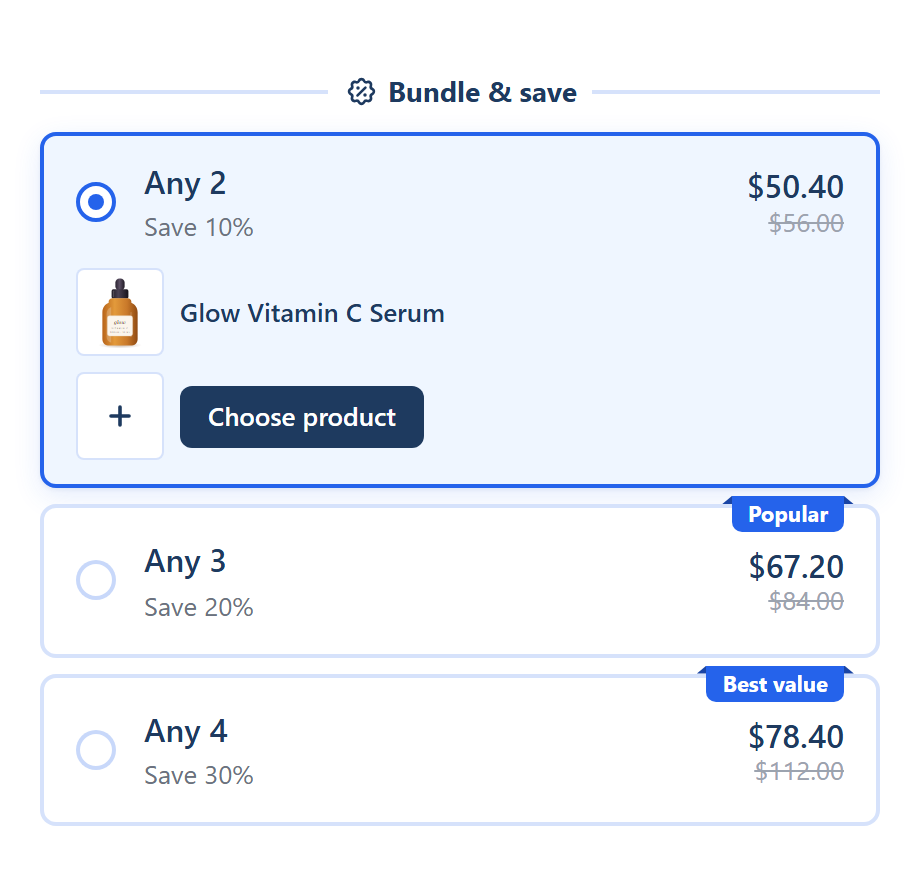
Shopify's built-in discounts can give a price for any number of items from a collection, but shoppers find and add each item themselves, and the free Shopify Bundles app doesn't support mix-and-match bundles. With SMART Bundles App & Upsells, a Mix and match offer shows tiers such as "Any 2, 3 or 4" on the product page, counts the bundle's products in the cart together, and can let shoppers pick the other products right in the widget.
SMART Bundles App & Upsells is a free Shopify app for bundles, quantity breaks, free gifts and upsells.
Try it freeOn this page
What Shopify can do without an app
Shopify's free Shopify Bundles app makes fixed bundles and multipacks (Shopify Bundles). Its eligibility page says plainly that it doesn't support mix-and-match bundles (Eligibility and considerations). So the built-in route is a discount:
- Amount off products with a minimum quantity. Apply the discount to specific collections and set the minimum purchase requirement to a minimum quantity of items, for example 15% off once the cart holds 3 items from the collection. For automatic discounts, only the items the discount applies to count toward the minimum (Amount off discounts).
- Buy X get Y across collections. "Customer buys" can be items from one collection and "Customer gets" items from another, at a percentage off, an amount off each, or free (Buy X get Y). The "get" item is never added to the cart for the customer.
Limits of the built-in way
- One value per discount. Each amount off discount has one percentage or amount, so a ladder (any 2 for 10%, any 3 for 20%) needs one discount per step. When discounts can't combine, Shopify applies the best discount for the customer's cart (Discount combinations).
- Stacking on one item is Plus only. Two product discounts on the same line item can combine only on the Shopify Plus plan (Discount combinations).
- Nothing on the product page. Shoppers learn about the deal from your own banners or copy, then add each item from its own page.
- 25 automatic discounts. You can have up to 25 active automatic discounts, app discounts included (Automatic discounts). Some ranking pages still say Shopify runs only one automatic discount at a time. That is out of date.
How SMART Bundles does mix and match
In SMART Bundles a mix and match deal is a Mix and match offer inside a bundle: "Buy any N of the products in this bundle, counted together". Each offer is one tier, and the bundle's target is the product pool.
| Shopify built-in discount | SMART Bundles Mix and match | |
|---|---|---|
| Tiers | One per discount; the best one applies | Several offers in one bundle; the highest tier reached applies |
| On the product page | Nothing | Offer cards with prices, and an optional product picker |
| Who adds the items | The shopper, from each product page | The widget, or the shopper from each page |
| Product pool | Products or collections | Products, Collections or All products, with exclusions by products, collections or product tags |
| Discount code | Automatic or code | Automatic only |
- Discount per tier: "Percentage off", "Amount off each item", "Amount off total", "Fixed price per item", "Fixed total price" or "No discount".
- Counting: at checkout the discount counts every target product in the cart together. Two mugs and one plate from the bundle count as 3.
- Packs: new Mix and match offers start with Only full packs of N get the discount ticked, so only whole packs are discounted and leftover units pay full price. Untick it to discount every unit once the tier is reached. A "Fixed total price" always counts full packs.
- Where items come from: by default any target product in the cart counts, also one added from a collection page. To count only items added through the widget, tick Apply the discount only to items added through the widget (Settings tab, Discount rules).
Set up a Mix and match bundle
- In your Shopify admin, open the app. It appears as SMART Discounts. Click Create new discount.
- Pick the Mix and match template (any 2, 3 or 4 from a collection, three tiers), or Start from scratch and use Add your first offer > Mix and match.
- On the Offers tab, under Show this bundle on, choose Collections, Products or All products. For Collections or All products you can tick Exclude products.
- Set each offer's Quantity, Discount and value.
- Keep Shoppers pick the products ticked (it's on for new offers) to let shoppers fill the slots in the widget, or untick it. See the next section.
- On the Design tab, open Element styles > Product picker for the picker's layout (List or Grid), Products per row, Default sort, search, sort, names and prices.
- On the Settings tab, check Eligibility (markets, Exclude B2B, Exclude POS) and Combines with.
- Click Create (the bundle goes live right away) and make sure the app embed is on: in the theme editor, under App embeds, Deal widget from SMART Discounts. See Turn on the app embed. Then open a target product in your store.
Shoppers pick the products
With Shoppers pick the products ticked, the first item is the product being viewed. Shoppers fill the other slots from the products in Show this bundle on, minus exclusions. Three settings appear under it:
| Setting | Choices | Default |
|---|---|---|
| Empty slots | "Block Add to cart until every slot is filled", "Fill them with this product", "Add only the chosen products" | Block Add to cart |
| Slots start | "Empty", "With this product (shoppers can swap it)" | Empty |
| Card price | "Count empty slots as this product", "Count only chosen products" | Count empty slots as this product |
Without the picker, the widget adds the offer's number of units of the viewed product (the variants can differ), and shoppers add other bundle products from their own pages. Checkout still counts them together. More detail: Mix and match offer.
Limits and edge cases
- 250 products in the picker. The admin notes that shoppers can pick from the first 250 products.
- The picker list is saved with the bundle. Products added to a collection or newly tagged show in the picker after you save the bundle again. Sold-out products are left out live, and products not on the Online Store or not sold in the shopper's market are skipped.
- If the picker can't load, the offer falls back to units of the viewed product, so a sale is never blocked.
- Subscriptions: Allow subscription isn't offered on a Mix and match offer whose shoppers pick the products; those items are one-time purchases.
- One bundle per product page. If two bundles target the same product, the page shows one of them and the editor warns you. At checkout, any one item gets only the better of the two discounts.
- No build-a-box page. The picker lives inside the product page widget. Products stay separate products and cart lines; the app creates no bundle product and syncs no bundle inventory.
- Automatic only. Bundles have no discount code, usage limit or customer tag targeting.
- Big catalogs: no widget shows on products with more than 250 variants.
Need a code instead?
A Volume discount with Group by set to All products (the default) counts eligible items from different products together, and it can be automatic or a code. It works in the cart and at checkout only, with nothing on the product page. See Volume discounts.
Let shoppers mix their own bundle
Install SMART Bundles App & Upsells, pick the Mix and match template and choose a collection. The app is free, with every feature included.
Install free on ShopifyFrequently asked questions
›Do customers have to add the products through the widget?
No. By default every target product in the cart counts toward the tier, wherever it was added. Tick Apply the discount only to items added through the widget if you want only widget adds to count.
›Can shoppers pick products from a whole collection?
Yes. Target Collections, keep Shoppers pick the products ticked, and shoppers fill the slots from that collection's products, up to the first 250. Use Exclude products to keep items out.
›Can I give a bigger discount for more items?
Yes. Add one Mix and match offer per tier, for example Any 2 at 10%, Any 3 at 20%, Any 4 at 30%. The highest tier the cart reaches applies.