
How do I change the bundle widget's design and add custom CSS?
Updated · SMART Bundles App & Upsells (E-TRADE PARTNER)
Use the bundle's Design tab: General style for layout, color presets, radius, spacing, font and width, Element styles for each part of the widget, and Custom CSS at the bottom for anything else. CSS for every bundle goes in the app's main Settings > Custom code. The app has no custom JavaScript.
SMART Bundles App & Upsells is a free Shopify app for bundles, quantity breaks, free gifts and upsells.
Try it free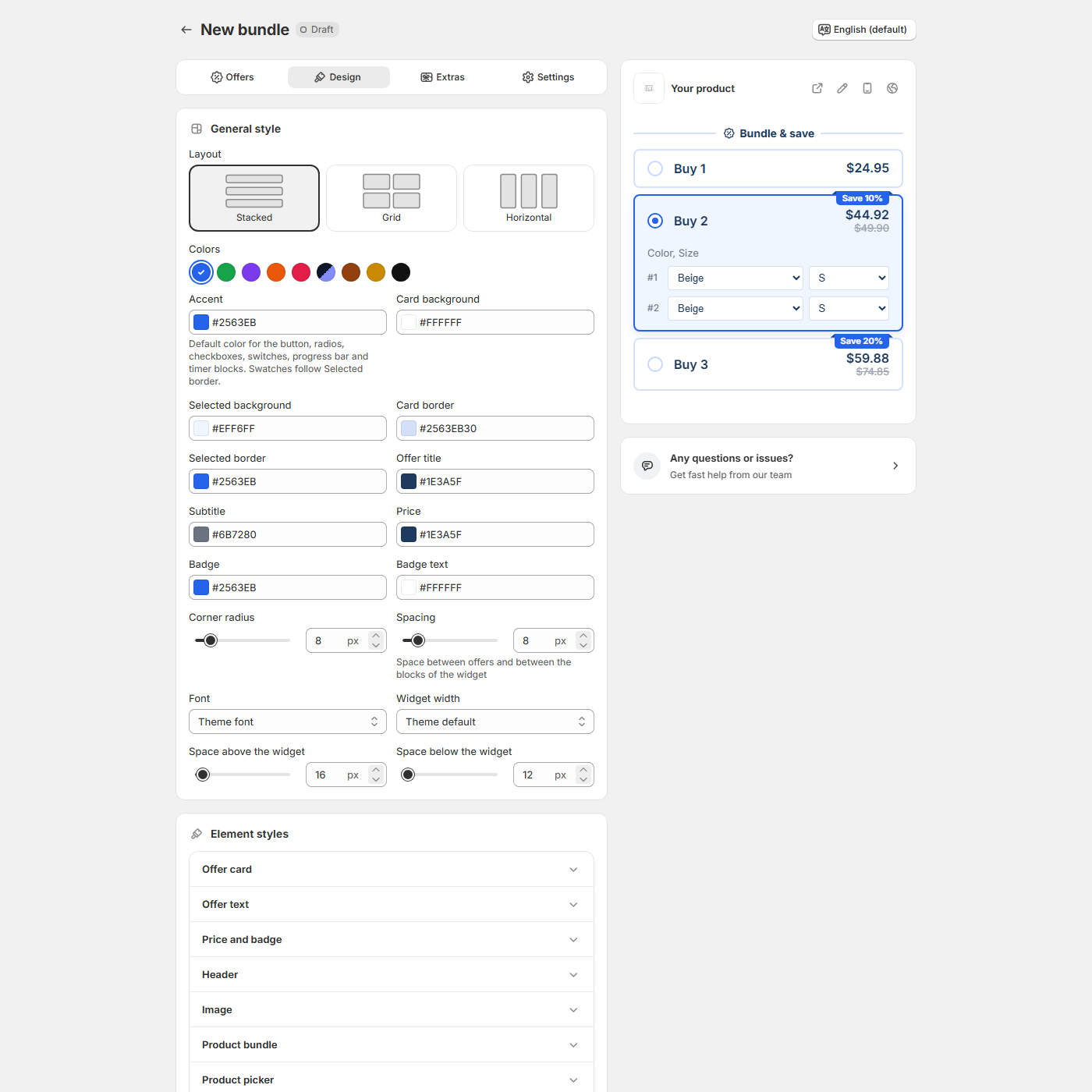
General style
- Layout: Stacked, Grid or Horizontal.
- Colors: preset swatches Default, Forest, Purple, Sunset, Rose, Midnight (a dark mode for dark themes), Earth, Gold and Black. A preset replaces every color; over custom colors, the editor asks "Replace your custom colors?" first.
- Accent: the default color for the button, radios, checkboxes, switches, progress bar and timer blocks. Then Card background, Selected background, Card border, Selected border, Offer title, Subtitle, Price, Badge and Badge text.
- Corner radius, Spacing, Font (Theme font or System font), Widget width (Theme default or Custom with a Maximum width), and Space above the widget / Space below the widget.
The live preview on the right updates as you edit. Its icons are Change preview product, Mobile preview and Preview as (a market and currency).
Element styles
One accordion holds the details: Offer card, Offer text, Price and badge (including Show struck price: Off, Price before discount or Compare-at price), Header, Image, Product bundle, Product picker, Variant pickers, Checkbox and radio, Gifts and upsells, Button and Sold out.
- One offer only: on the Offers tab, open the offer > Appearance for Badge shape (Square, Pill, Ribbon), Badge position (Top right, Top left, Inline after the title), Highlight this offer and Show as sold out.
- Extras: the Countdown timer, Progressive gifts, Upsell add-ons and Subscriptions cards each have their own Style tab.
- Texts: offer texts are on the Offers tab, the rest on the Settings tab > Widget text. See Translate the widget.
- Theme price: Update theme product price (Settings tab > Theme integration, on by default) makes the theme's price follow the selected offer, as the Offer total or the Price per item.
Add custom CSS
- For one bundle: on the Design tab, scroll to the Custom CSS card. It is "Applied after the global custom CSS from Settings".
- For every bundle: in the app's main Settings, open Custom code > Custom CSS. It applies on every page that renders the widget.
- Each box holds up to 20,000 characters. Save the bundle or the settings, then reload your product page.
The widget is plain HTML on your theme's page, with class names that start with sw-. For example:
.sw-root .sw-offer-title { text-transform: uppercase; }
.sw-root .sw-offer--selected { box-shadow: none; }
What CSS is refused
- CSS that loads files is refused on save: url(), image-set(), src(), @import and "</".
- Allowed exceptions: data: images, your store's own /cdn/shop/ files, files on cdn.shopify.com, Google Fonts files, and @import of Google Fonts or Shopify fonts stylesheets.
- A "<" alone is fine, so media ranges such as (width < 750px) work.
- There is no custom JavaScript field. It was removed from the app.
Widget not where you want it? See Place the bundle widget. Styling the Mix and match picker: Mix and match offer.
Make the widget match your theme
SMART Bundles App & Upsells is free on the Shopify App Store, with every design setting and custom CSS included.
Install free on ShopifyFrequently asked questions
›Can I add custom JavaScript to the widget?
No. The app has custom CSS only, per bundle and for the whole store.
›Which CSS wins, the store-wide one or the bundle's?
The bundle's custom CSS comes after the store-wide CSS from Settings > Custom code, so it wins when both set the same property on the same selector.
›My CSS with a font @import was refused. Why?
Only Google Fonts and Shopify fonts stylesheets can be imported. Other hosts are refused because they load files from outside your store.