
How do I set up quantity break tiers?
Updated · SMART Bundles App & Upsells (E-TRADE PARTNER)
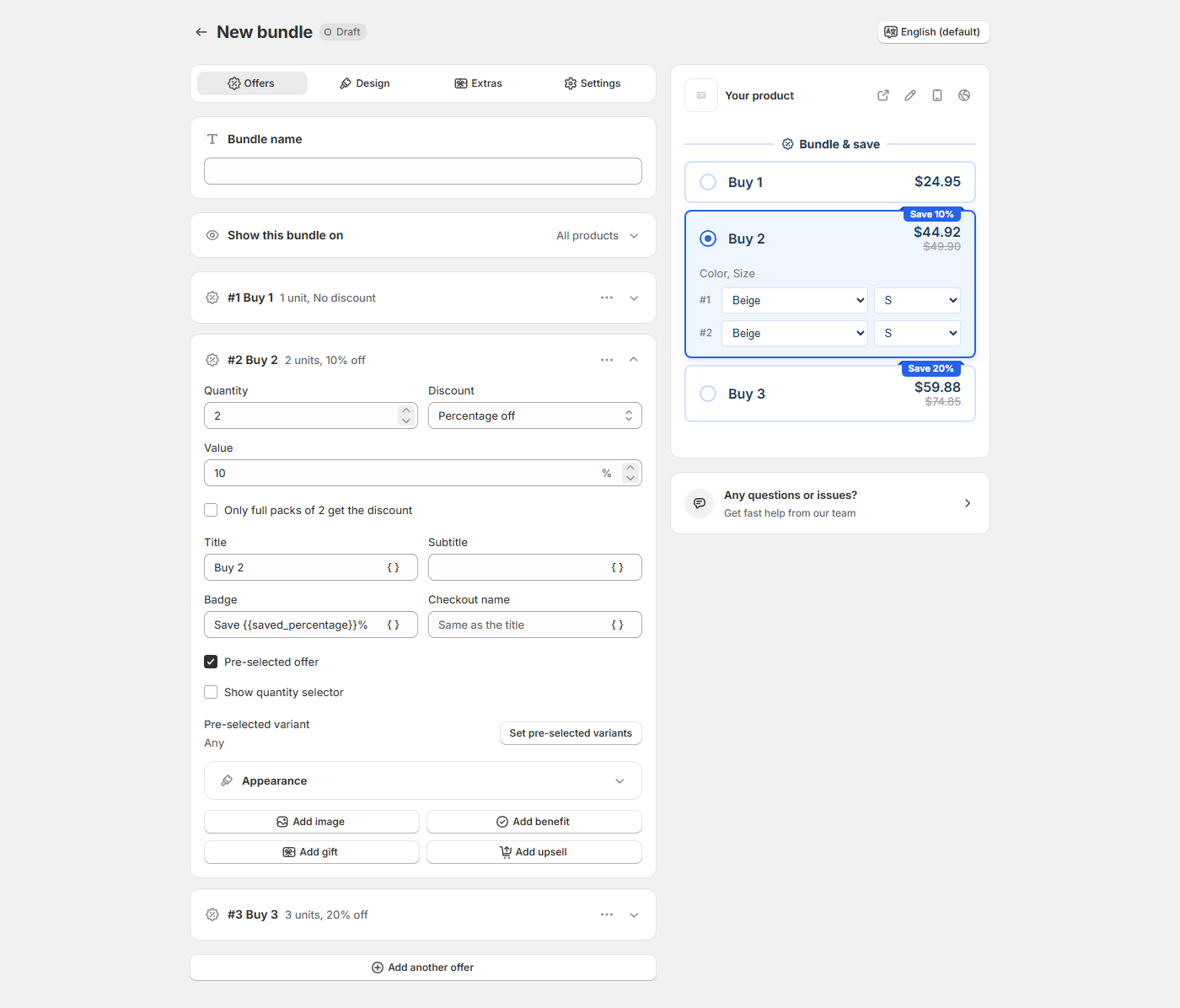
Create a bundle from the Quantity breaks template and keep one offer per quantity, for example Buy 1, Buy 2 at 10% off and Buy 3 at 20% off. At checkout, the highest tier the cart reaches applies to every unit of that product, unless you tick Only full packs of N get the discount.
SMART Bundles App & Upsells is a free Shopify app for bundles, quantity breaks, free gifts and upsells.
Try it freeOn this page
Set up the tiers
- In Shopify admin, open SMART Discounts (the app's name in your admin) and click Create new discount.
- Pick the Quantity breaks template. It starts with Buy 1 (no discount), Buy 2 at 10% and Buy 3 at 20%, with Buy 2 pre-selected.
- On the Offers tab, open Show this bundle on and choose All products (the default), Products or Collections. See Target products and exclusions.
- Open each offer card and set Quantity, Discount and Value. To add a tier, click Add another offer and choose Quantity breaks.
- Edit Title, Subtitle, Badge and Checkout name. Variables such as {{quantity}} and {{saved_percentage}} fill in on the storefront.
- Optional: tick Pre-selected offer on one card (one per bundle), and Show quantity selector to let shoppers buy several packs of a tier.
- Click Create and check a targeted product page. The widget needs the app embed.
Discount types per tier
| Discount | What the tier does |
|---|---|
| No discount | Full price. Typical for the Buy 1 card. |
| Percentage off | Takes the percentage off each unit (up to 100%). |
| Amount off each item | Takes the amount off each unit, never more than the unit price. |
| Amount off total | Takes the amount off once for the tier, or once per pack with full packs on. |
| Fixed price per item | Sets each unit to that price. Units already cheaper stay as they are. |
| Fixed total price | Charges that price per full pack, for example 2 for $30. |
When your store sells in other currencies, amount and fixed types get a globe button next to Value (Prices per currency) that sets your own amount per currency. See Markets and currencies.
How checkout prices the tiers
- Highest tier reached, every unit. With Buy 3 at 10% and 4 units in the cart, all 4 get 10% off. A Buy 3 tier also covers 7 or 10 units.
- Per product. Each product counts on its own, with its variants added together. 2 red and 1 blue of one shirt reach Buy 3; 2 of shirt A and 1 of shirt B don't. To count different products together, use a Mix and match offer.
- Only full packs of N get the discount. Ticked, only whole packs are discounted: Buy 3 with 7 units discounts 6, and 1 pays full price. The checkbox shows once the offer has a discount and a quantity above 1.
- Fixed total price always counts full packs. Leftover units pay full price. It never raises a price: if the pack already costs less, nothing changes.
- Rounding per item. Each item's percentage discount is rounded down to the cent: 15% off 19.99 takes off 2.99, so each item costs 17.00. A pack total can differ by a few cents from the percentage of the whole. The widget rounds the same way. For an exact pack price, use Fixed total price.
- The cart counts, not the click. Units added from a collection page or the cart also reach a tier. To discount only items added through the widget, tick Apply the discount only to items added through the widget on the Settings tab, under Discount rules.
Edge cases
- Count each variant separately (Settings tab > Variant pickers) makes tiers count each variant on its own. It can't be used together with Pick a variant for each unit. See Variant pickers.
- While the selected offer sets the quantity, the theme's own quantity box is hidden. Hide theme quantity selector (Settings tab > Theme integration) hides it for every offer.
- A product page shows one bundle. The editor warns you when another active or scheduled bundle targets the same products.
- Bundles are automatic, with no code. With other discounts, see Combine with other discounts.
More on the offer: Quantity breaks, Quantity breaks on Shopify and the bundle discount calculator.
Add quantity breaks to your product pages
SMART Bundles App & Upsells is free on the Shopify App Store: one plan with every offer type included.
Install free on ShopifyFrequently asked questions
›Do I need a tier for 4, 5 and 6 items?
No. The highest tier the cart reaches also prices bigger quantities, so a Buy 3 tier covers 4 or more units. The widget shows only the tiers you add.
›Why is the bundle total a few cents off the percentage?
Each item's discount is rounded down to the cent before the items are added up. Use Fixed total price when a pack must cost an exact amount.