
How to set up quantity breaks on Shopify
Updated · SMART Bundles App & Upsells (E-TRADE PARTNER)
With Shopify's built-in discounts you build quantity breaks from several automatic Amount off products discounts, each with a higher Minimum quantity of items; outside Shopify Plus an item gets only one of them, the best. B2B catalogs have real quantity price breaks, up to 10 per product, but only for B2B customers. To show the tiers on the product page and let shoppers pick one, use an app such as SMART Bundles and its Quantity breaks offer.
SMART Bundles App & Upsells is a free Shopify app for bundles, quantity breaks, free gifts and upsells.
Try it freeOn this page
Option 1: Shopify's built-in discounts
Each Amount off products discount has one value and one minimum requirement, so every tier is its own discount (Amount off discounts). For "2 items 10% off, 3 items 15% off":
- In Shopify admin, go to Discounts > Create discount > Amount off products.
- Under Method, select Automatic discount.
- Set the discount value to Percentage, 10%, and choose the products or collections it applies to.
- Under minimum purchase requirements, select Minimum quantity of items and enter 2. Save.
- Create a second discount the same way: 15%, minimum 3 items. Add more tiers as needed.
When the cart reaches 3 items, both discounts qualify. Outside Plus, two product discounts can't share an item, so Shopify applies the better one for the customer (Combining discounts).
Limits of this approach
- Every tier uses an automatic discount slot. Shopify allows 25 active automatic discounts, app discounts included (Automatic discounts).
- Nothing on the product page. Shopify applies automatic discounts in the cart and at checkout. Showing the tiers before add to cart is up to your theme or an app.
- On Plus, watch the tags. Product discounts with reciprocal discount tags can stack on the same item, which would add tiers together.
- POS: automatic discounts work only at locations with a POS Pro subscription, and only once you turn them on for POS.
Option 2: B2B quantity price breaks
B2B catalogs have their own volume pricing. It's set in Markets > Catalogs or by CSV import, and it's for B2B customers only (Setting up quantity rules and volume pricing in B2B):
- Up to 10 price breaks per product, applied to each variant.
- Each variant has to reach the quantity on its own; customers can't mix variants to reach a break.
- A price break sets a fixed unit price, so the catalog's overall percentage adjustment no longer applies to it.
- Quantity rules add a minimum, a maximum and an increment per variant, checked again at checkout. Break quantities must be above the minimum and a multiple of the increment.
- Shopify B2B is available on the Basic, Grow, Advanced and Plus plans, not on Starter or Retail (Shopify B2B features by plan).
- Automatic discounts and codes apply on top of catalog prices (Setting up B2B discounts).
So B2B price breaks are the tool for wholesale buyers, and they don't reach your regular storefront shoppers. For retail shoppers, use Option 1 or Option 3.
Option 3: the SMART Bundles "Quantity breaks" offer
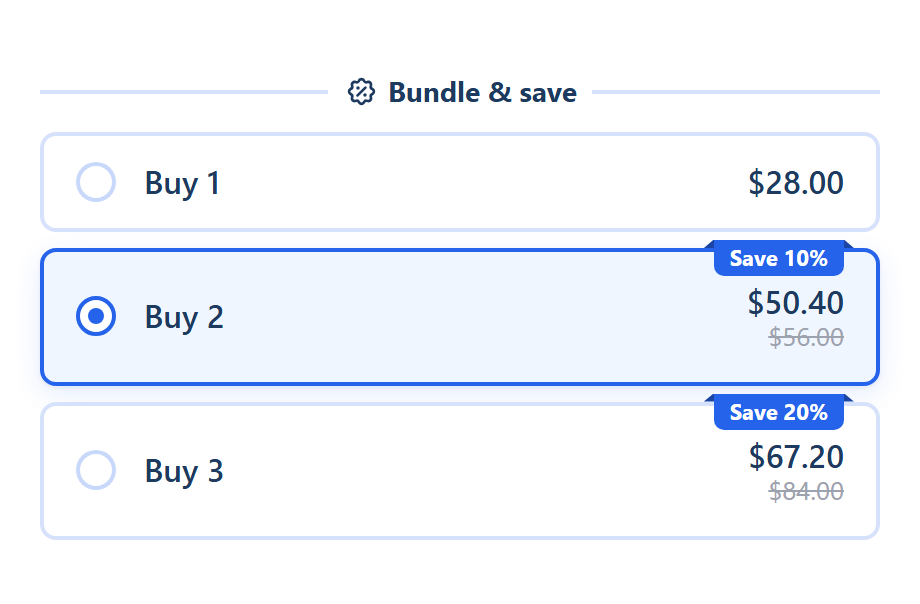
SMART Bundles shows your tiers as offer cards above the theme's Add to cart button. The shopper picks one, the theme's own button adds that quantity, and Shopify applies the discount in the cart and at checkout.
- In Shopify admin, open SMART Discounts and click Create new discount. Pick the Quantity breaks template: Buy 1, Buy 2 at 10% and Buy 3 at 20%, with Buy 2 pre-selected.
- On the Offers tab, set Show this bundle on: All products (the default), Products or Collections. For collections and all products you can Exclude products by product, collection or tag.
- Edit each offer's Quantity, Discount and Value. The discount can be No discount, Percentage off, Amount off each item, Amount off total, Fixed price per item or Fixed total price. Use Add another offer for more tiers.
- Optional per offer: Only full packs of N get the discount, Show quantity selector (buy several packs) and Pre-selected offer. Amounts can have Prices per currency.
- On the Settings tab, check Active dates, Eligibility (Markets, Exclude B2B, Exclude POS) and Combines with.
- Click Create (the bundle goes live right away), and make sure the SMART Discounts app embed (Deal widget under App embeds) is on in your theme.
How the tiers price the cart
- The highest tier reached applies to every unit of that product. With Buy 3 at 10% and 4 in the cart, all 4 get 10% off. You don't need a tier for every quantity.
- Full packs only: tick Only full packs of N get the discount to discount 3, 6, 9 units and leave the rest at full price. Fixed total price always prices whole packs.
- Variants count together. 2 red and 1 blue reach a Buy 3 tier. To count each variant on its own, untick Pick a variant for each unit (Settings tab > Variant pickers) and tick Count each variant separately.
- Different products don't count together. Each product reaches its tier on its own, so one bundle can cover a whole collection. To pool products ("any 3 from this collection"), use a Mix and match offer.
- The cart quantity counts, not the click. 3 units added from a collection page still reach Buy 3, unless you tick Apply the discount only to items added through the widget.
- One bundle, one discount. However many tiers it has, a bundle uses one of Shopify's 25 automatic discount slots.
Tiers without a widget: Volume discount
For quantity tiers that apply only in the cart, the app's Volume discount type has Tiers (Percentage off, Amount off per item or Fixed price per item), Based on Product quantity or Product price, and Group by All products, Product or Variant. It can target variants, use a code, and use customer segments. The highest tier reached applies to all qualifying items. Nothing shows on the product page. See Volume discounts.
Side by side
| Shopify built-in | B2B price breaks | SMART Quantity breaks | |
|---|---|---|---|
| Who gets it | Any eligible customer | B2B customers on the catalog | Any shopper; B2B can be excluded |
| Tiers | One discount per tier | Up to 10 per product | Offers in one bundle, no fixed cap |
| How it's counted | Per discount's minimum | Each variant on its own | Each product, variants together (or each variant) |
| On the product page | Not by the discount | Not covered here | Offer cards in the widget |
| Automatic discount slots | One per tier | None (catalog pricing) | One per bundle |
| Codes | Yes | Not a discount | No: bundles are automatic only |
Setup details: Quantity break tiers. Feature overview: Quantity breaks. To try prices before you set them, use the bundle discount calculator.
Show your quantity breaks on the product page
Install SMART Bundles App & Upsells, pick the Quantity breaks template and activate it. Tiers, gifts and add-ons are included, and the app is free.
Install free on ShopifyFrequently asked questions
›Do customers have to use the widget to get the tier price?
No. The cart quantity qualifies, so 3 units added any way reach a Buy 3 tier. Tick Apply the discount only to items added through the widget if you want widget adds only.
›Can SMART Bundles show a volume pricing table instead of offer cards?
No. The widget shows selectable offer cards. There's no passive price table.
›Can I give wholesale customers their own quantity prices with SMART Bundles?
No. B2B in the app is exclude-only: tick Exclude B2B so company buyers don't get the bundle discount, and set their price breaks in a B2B catalog.