
Quantity breaks: buy more, pay less per unit
Updated · SMART Bundles App & Upsells (E-TRADE PARTNER)
A Quantity breaks offer in SMART Bundles shows tiers such as Buy 1, Buy 2 and Buy 3 as cards on your product page. The shopper picks a tier and adds it with your theme's own Add to cart button. The app's Shopify Function then applies the discount automatically in the cart and at checkout.
SMART Bundles App & Upsells is a free Shopify app for bundles, quantity breaks, free gifts and upsells.
Try it freeOn this page
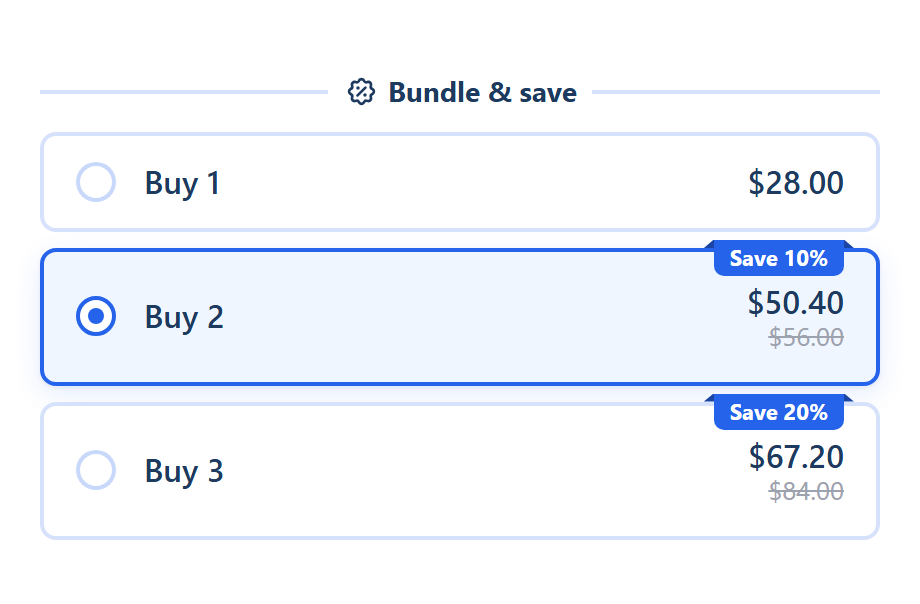
What the shopper sees
- Offer cards above your theme's Add to cart button, laid out Stacked, Grid or Horizontal (Design tab > General style > Layout).
- A title, subtitle, badge and price on each card, with the price before discount struck through. Text variables fill in real numbers, so a badge written as Save {{saved_percentage}}% reads "Save 10%".
- The theme price follows the offer. With Update theme product price on (the default), the price on your theme shows the offer total or the price per item (Settings tab > Theme integration > Theme price shows).
- Variant pickers in the widget, one per unit by default (Pick a variant for each unit), so a shopper can take 2 red and 1 blue. Each option can show as Dropdown, Buttons, Color swatches, Image swatches or Variant images.
- No double quantity box. Your theme's quantity selector is hidden while the selected offer sets the quantity.
- More packs. Tick Show quantity selector on a tier and shoppers can buy several packs of it.
How the discount is worked out
- Each product counts on its own, with its variants together. 2 red and 1 blue of one shirt reach a 3-item tier. 2 of shirt A and 1 of shirt B don't. To pool different products, use a Mix and match offer. To count each variant on its own, turn off Pick a variant for each unit and tick Count each variant separately (Settings tab > Variant pickers).
- The highest tier reached prices every unit. With Buy 3 at 20% off and 4 in the cart, all 4 get 20% off.
- Full packs only, if you want. Tick Only full packs of N get the discount on a tier, and only full packs (3, 6, 9) are discounted. Leftover units pay full price.
- Fixed total price is a pack price ("2 for $30"), so it always counts full packs.
- The cart decides, not the click. Units of the product added another way, such as a quick add on a collection page, count too. To discount only what the widget added, tick Apply the discount only to items added through the widget (Settings tab > Discount rules).
Discount types on a tier
| Discount | What the tier gets |
|---|---|
| No discount | The regular price. Useful for a Buy 1 card. |
| Percentage off | A percentage off each unit, up to 100. |
| Amount off each item | A fixed amount off every unit. |
| Amount off total | A fixed amount off the tier's total. |
| Fixed price per item | Every unit sells at your price. |
| Fixed total price | The pack sells at your price. |
Amounts are entered in your store currency and converted for shoppers who pay in another currency. If you sell in several currencies, the globe button next to Value (Prices per currency) sets your own amount per currency. Fixed prices must be above 0, and a discount never raises a price.
What else a tier can carry
- Texts: Title, Subtitle, Badge and Checkout name, the discount name shown at checkout (the title unless you change it).
- Appearance: Badge shape (Square, Pill, Ribbon), Badge position, Highlight this offer, and Show as sold out ("Customers see the offer but cannot pick it.").
- Image (the product image or your own), benefits (up to 10 lines with icons), a free gift (Add gift) and add-ons (Add upsell).
- Pre-selected offer, so a tier is already picked when the page loads. The Quantity breaks template pre-selects Buy 2.
Bundle-wide extras such as a countdown, progressive gifts or a savings line are covered in Upsells and extras.
Where it shows
- Show this bundle on: All products (the default for a new bundle), Products or Collections. With Collections or All products, Exclude products leaves out products by product, collection or product tag.
- One bundle per product page. If two bundles target the same product, the page shows one and the editor warns you. Checkout can still apply both discounts.
- Markets: All markets, Only these markets or All except these markets. Outside them the widget is hidden and there is no discount.
- Exclude B2B and Exclude POS (on for new bundles) on the Settings tab.
- The widget needs the SMART Discounts app embed. In your theme editor it is Deal widget under App embeds, listed with the app name SMART Discounts. To place the widget yourself, add the Bundle widget block.
Limits
- Automatic only. Bundles have no discount code, no usage limit and no once-per-customer limit.
- No customer targeting. A bundle can't be limited to a customer tag, segment or single customer. For tiers by customer tag or segment, use a Volume discount, which shows nothing on the product page.
- Whole products. A bundle targets products, collections or all products, never a single variant.
- 250 variants. The widget doesn't show on products with more than 250 variants.
- 25 automatic discounts. Shopify allows at most 25 active automatic discounts per store, and that total includes app discounts (Shopify Help Center). Each active bundle is one of them.
- Combining. A new bundle combines with product, order and shipping discounts (Settings tab > Combines with). The other discount has to allow combining too.
How to set it up
- Turn on the SMART Discounts app embed: in your theme editor, open App embeds, switch on Deal widget (listed under SMART Discounts) and save. See Turn on the app embed.
- In Shopify admin, open SMART Discounts and click Create new discount. Choose the Quantity breaks template.
- On the Offers tab, give it a Bundle name, set Show this bundle on, and edit each tier's Quantity, Discount and Value.
- Style it on the Design tab and check the live preview, then click Create. The bundle goes live on save unless its start date is in the future.
Step-by-step help: Create your first bundle, Quantity break tiers, Place the bundle widget, Variant pickers and Widget design and custom CSS. All templates: Bundle templates.
Related guides
- How to set up quantity breaks on Shopify
- Tiered discounts after Shopify Scripts
- How to combine discounts on Shopify
- Shopify discount not applying: a checklist
Add quantity breaks to your product pages
Install SMART Bundles, choose the Quantity breaks template and set your tiers. The app is free: one plan with everything included.
Install free on ShopifyFrequently asked questions
›Do I need a tier for every quantity?
No. The highest tier reached also prices bigger carts: a Buy 3 tier covers 7 units. Tick Only full packs of N get the discount if only full packs should be discounted.
›Can customers mix sizes or colors in one tier?
Yes. Variants of the same product count together, and with Pick a variant for each unit on (the default) each unit gets its own picker in the widget.
›Can I show quantity breaks only to wholesale or tagged customers?
Not with a bundle. Bundles can be limited by market and can exclude B2B buyers and POS sales, but they can't target customer tags or segments. A Volume discount can, but it shows nothing on the product page.
›Does the discount apply if the customer adds 3 units without using the widget?
Yes, by default. The cart quantity qualifies. Tick Apply the discount only to items added through the widget to change that.