
Upsells and extras for the bundle widget
Updated · SMART Bundles App & Upsells (E-TRADE PARTNER)
Every SMART Bundles widget can carry extras on top of its offers: checkbox add-ons, a progressive gift ladder, a Subscribe and save choice, a countdown, a savings line, a sticky bar, a low stock alert and an Alternative product offer. Most are switches on the bundle editor's Extras tab, and they all show inside the bundle widget on your product pages.
SMART Bundles App & Upsells is a free Shopify app for bundles, quantity breaks, free gifts and upsells.
Try it freeOn this page
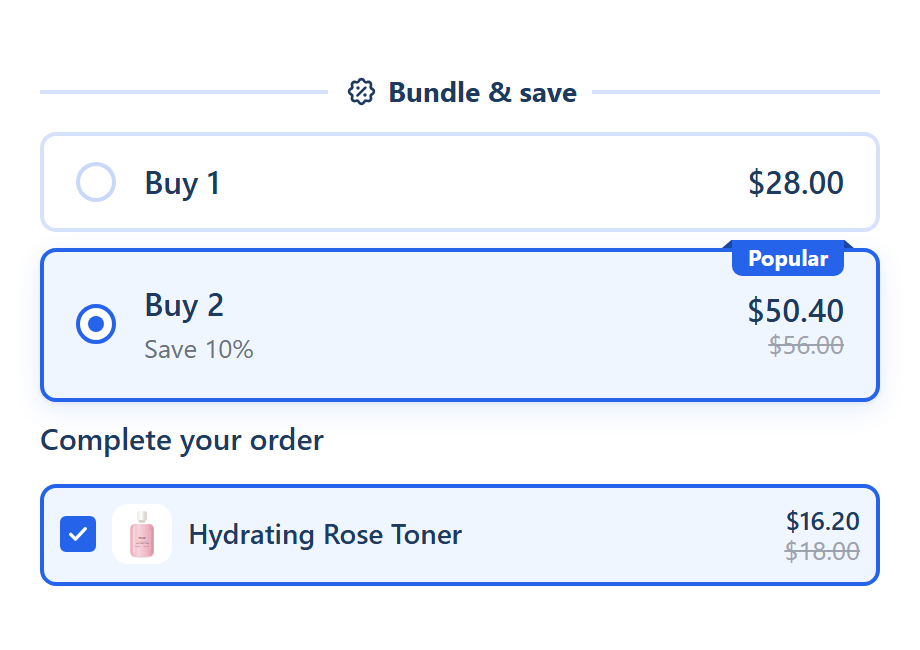
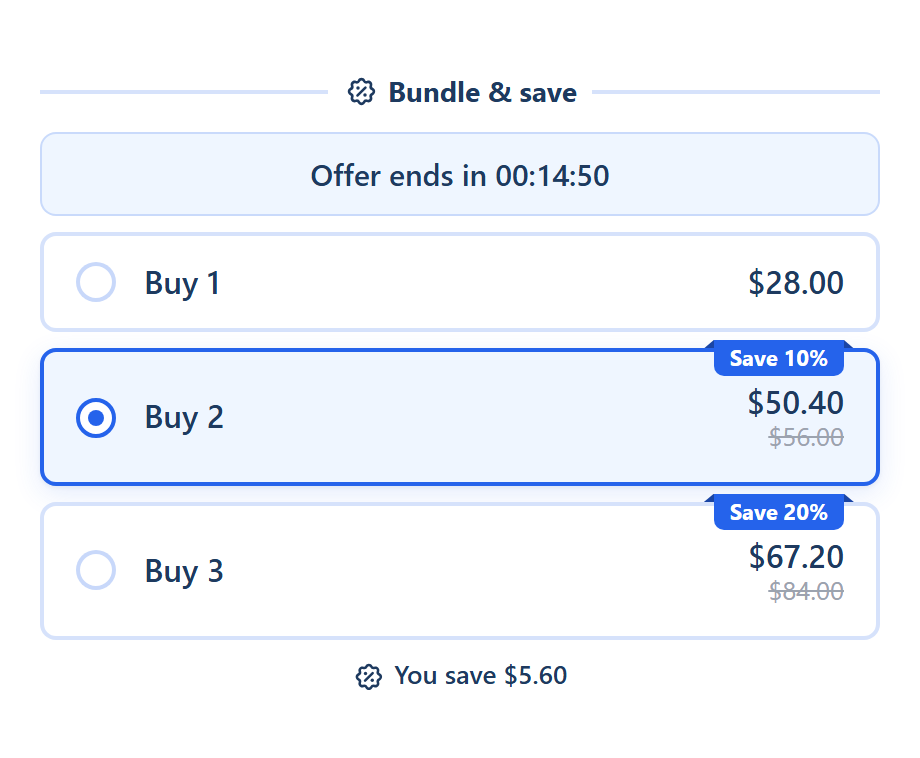
Upsell add-ons
- Under every offer: Extras tab > Upsell add-ons adds rows below the offers, with an optional Block title. The Bundle with upsells template uses "Complete your order".
- On one offer: Add upsell on an offer card shows the add-on as a band on that card only.
- Per add-on: the product (with Edit variants), Quantity, a discount (No discount, Percentage off, Amount off each item or Fixed price per item), Title, Subtitle, Checkout name, Pre-selected and Show quantity selector.
- Look: Design tab > Element styles > Gifts and upsells > Upsell layout: Checkbox, Tick only or Toggle.
- Pricing: the discount goes only to the line the widget added as that add-on, up to its quantity, while an offer of the bundle applies. The same product added on its own pays full price. Add-on lines never count toward an offer, and they are always one-time purchases.
Progressive gifts
- A gift ladder above or below the offers, as Cards or a List.
- Each step is a gift product or Free shipping ("Shipping is free at checkout while this gift is unlocked."). Unlock at: Offer #N and higher, Offer #N only or Spend at least... an amount.
- Options: Show progress (a step line over the cards, a bar over the list), Hide gifts until they are unlocked, Show product images on locked gifts, a badge and crossed-out value per gift, and the texts "Add {{n}} more" and "Spend {{amount}} more".
- How it counts: progress follows the selected offer. Spend uses the bundle's products at their prices before discount.
- In the cart: an unlocked gift product is added as its own line on pages that show the bundle widget, and removed when its bundle leaves the cart. A bundle with a free shipping step is also a shipping discount, so it combines only with discounts that allow all its classes (Shopify Help Center).
A single offer can carry its own gift too: Add gift on the offer card. Shoppers can't choose between gift products; a gift with several variants gets a variant picker. More in Free gift.
Subscriptions
- A Subscribe and save choice next to "One-time purchase". Layout: Single card (with a Checkbox or Switch), Stacked or Side by side. Position: Above the offers or Below the offers.
- Options: Subscription selected by default, Show prices on the options, a plan label and text, and highlight lines.
- Your plans, your subscription app. The widget uses the product's own selling plans. Only recurring plans count; pre-order and try-before-you-buy plans are skipped. A product without a plan shows no choice.
- Which offers: Allow subscription is on by default for each Quantity breaks, Buy X, get Y and Mix and match offer. It isn't offered on Complete the bundle, Alternative product or a Mix and match offer whose shoppers pick the products.
- First order only. Bundles are saved with a recurring cycle limit of 1, which Shopify defines as "the number of billing cycles for which the discount can be applied" (Shopify developer docs). So the bundle discount covers the first billing cycle. With Subscriptions off, the bundle discount applies to one-time purchases only.
Countdown timer
- Timer type: Fixed duration (counted per browser from the first view, up to 10080 minutes, 7 days), Ends at midnight (the visitor's local midnight, every day) or Ends at a date.
- Layout Inline or Blocks; position Top of the widget, Above the offers or Below the offers; When it ends: Hide the timer, Show zeros or Show a message.
- Display only. The timer doesn't end the discount; set the bundle's Active dates for that. The editor reminds you: "Use real deadlines. Fake urgency can break Shopify's rules."
Savings summary, low stock and sticky bar
- Savings summary: a line above Add to cart, "You save {{saved_amount}}" by default, with an icon. Hide when there is no saving is on; Include free gift value and Show in a box are optional.
- Low stock alert (Settings tab): a line under the selected offer when the chosen variant runs low. Show when stock is at or below (5 by default), a message ("Only {{n}} left in stock") and a color. It reads your real inventory, for variants that track stock and stop selling at zero.
- Sticky add to cart: a bar fixed to the screen while the widget is out of view, with the product image (desktop only), title, selected offer, total and an optional countdown. Its button, "Choose offer" by default, scrolls back to the widget. It doesn't add to cart.
Alternative product
- An offer type ("Offer a different product instead of this one"): a card for another product next to the one on the page.
- The template: "This product" at its regular price and the alternative at 10% off with an "Upgrade" badge, both with images.
- Fields: Alternative product (with Edit variants), Quantity and a discount: No discount, Percentage off, Amount off each item or Fixed price per item.
- In the cart: picking it adds the alternative instead of the page product. The discount applies only to lines added through that card, so the same product added on its own pays full price.
Limits
- You choose every product. The app has no "frequently bought together" or automatic recommendations: add-ons, gifts and alternatives are hand-picked.
- In the widget only. There is no widget, banner or progress bar in the cart, the cart drawer or checkout.
- Automatic only, like every bundle.
How to set it up
- Open a bundle in SMART Discounts, or create one from a template such as Bundle with upsells, Subscription or Alternative product.
- On the Extras tab, switch on a card and fill it in. Low stock is on the Settings tab; an Alternative product is added with Add another offer on the Offers tab.
- Check the live preview, then save.
Step-by-step help: Upsell add-ons, Progressive gifts, Subscriptions in a bundle, Countdown timer and Alternative product offer.
Related guides
- Product page upsells and add-ons on Shopify
- Bundles with POS, subscriptions and pre-orders
- Free gift with purchase tiers on Shopify
Add an upsell to your next bundle
Install SMART Bundles, choose the Bundle with upsells template and pick your add-ons. Every extra is included in the free plan.
Install free on ShopifyFrequently asked questions
›Why does an add-on product added on its own pay full price?
The add-on discount goes only to the line the widget added as that add-on, while an offer of the bundle applies. The same product added from its own page is a normal line.
›Does the bundle discount repeat on every subscription renewal?
No. A bundle discount applies to the first billing cycle of a subscription only.
›Does the sticky bar add the bundle to the cart?
No. Its button scrolls the shopper back to the widget, where they pick an offer and use your theme's Add to cart.