
How do I add a countdown timer to a bundle?
Updated · SMART Bundles App & Upsells (E-TRADE PARTNER)
Open the bundle's Extras tab and turn on Countdown timer, then choose a Timer type: Fixed duration (counts down for each visitor from their first view), Ends at midnight (restarts every day at the visitor's midnight) or Ends at a date. The timer is display only: it never ends the discount.
SMART Bundles App & Upsells is a free Shopify app for bundles, quantity breaks, free gifts and upsells.
Try it freeOn this page
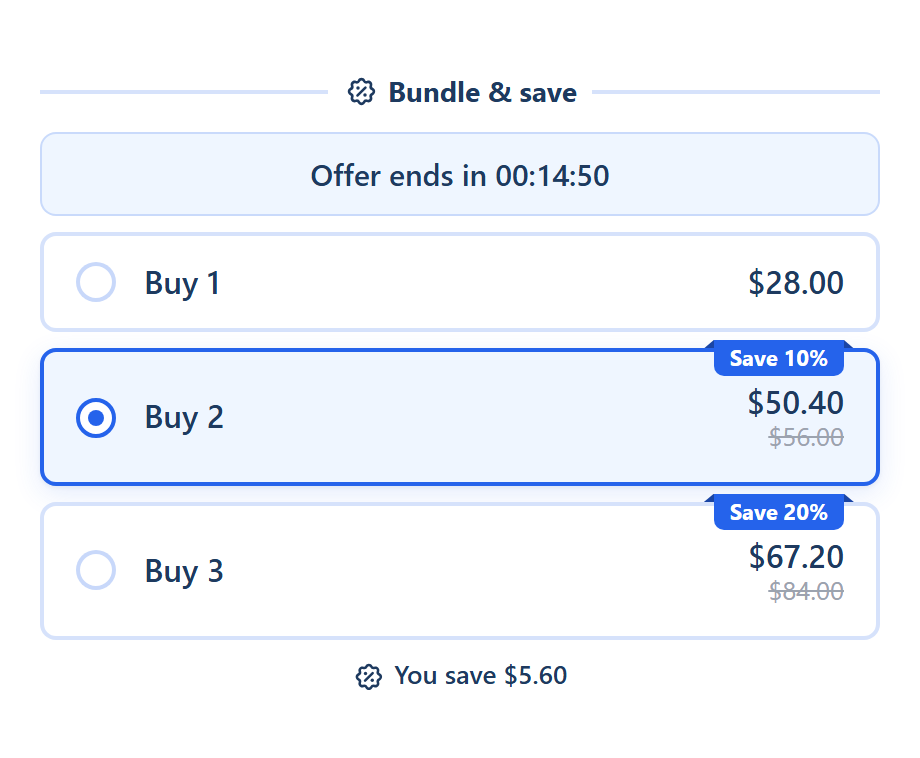
Set it up
- Open the bundle in SMART Discounts, go to the Extras tab and switch on Countdown timer.
- Choose the Timer type. Fixed duration shows Hours and Minutes: from 1 minute up to 10080 minutes (7 days), 15 minutes by default. Ends at a date shows a Date and a Time in your store's time zone, in 30-minute steps. With no future end set yet, it starts at tomorrow 11:59 PM.
- Pick a Layout: Inline (one line, the default) or Blocks (a box per unit, with Unit labels for Days, Hours, Min and Sec).
- Set the Position: Top of the widget, Above the offers (default) or Below the offers.
- Set When it ends: Hide the timer (default), Show zeros or Show a message, with an Ended message ("This offer has ended" by default). A midnight timer never ends, so this setting is off for it.
- Edit the Message, by default "Offer ends in {{timer}}", where {{timer}} is the time left, like 00:14:59. Add an optional Subtitle.
- On the card's Style tab, set Alignment, Show the timer in a box and the colors.
- Click Save.
To show the timer in the sticky bar too, tick Show the countdown in the Sticky add to cart card on the same tab.
How each timer counts
| Timer type | When it ends |
|---|---|
| Fixed duration | The set time after the visitor first sees the widget. The start is saved in their browser for this bundle. |
| Ends at midnight | At the next midnight on the visitor's device. It then restarts for the new day. |
| Ends at a date | At the same moment for everyone, in your store's time zone. |
- A Fixed duration timer keeps counting in the same browser. A new device, another browser or cleared site data starts it again.
- Over 24 hours, the timer shows days too.
- If the end date has already passed, the editor says what shoppers see, for example "This time has passed. The timer is hidden."
- The editor preview restarts an ended Fixed duration timer so you can keep checking the look.
The timer doesn't change the discount
The discount ignores the timer: shoppers still get the offer price after it reaches zero. To end the deal itself, set Active dates on the bundle's Settings tab, and use Ends at a date with the same end. See Automatic or code, and schedules.
Use real deadlines
For Fixed duration and Ends at midnight, the editor shows: "Use real deadlines. Fake urgency can break Shopify's rules." A date that matches your Active dates is a real deadline.
The message, subtitle, ended message and unit labels can be translated with the editor's language menu. See Translate the widget. More extras: Upsells and extras.
Add a real deadline to your bundle
SMART Bundles App & Upsells is free on the Shopify App Store, with the countdown timer and every other extra included.
Install free on ShopifyFrequently asked questions
›Does the discount stop when the timer reaches zero?
No. The timer is display only. Set Active dates on the Settings tab to end the discount.
›Why does the timer start again for some customers?
A Fixed duration timer is saved per browser. On another device or after clearing site data, it starts from the beginning.
›Which time zone does the timer use?
Ends at a date uses your store's time zone. Ends at midnight uses the visitor's own midnight.