
How do I add upsell add-ons to a bundle?
Updated · SMART Bundles App & Upsells (E-TRADE PARTNER)
Turn on Upsell add-ons on the bundle's Extras tab to show add-on rows under every offer, or click Add upsell inside one offer to show it on that card only. A ticked upsell goes to the cart with the offer, and its discount applies only to that upsell line while an offer of the bundle applies.
SMART Bundles App & Upsells is a free Shopify app for bundles, quantity breaks, free gifts and upsells.
Try it freeOn this page
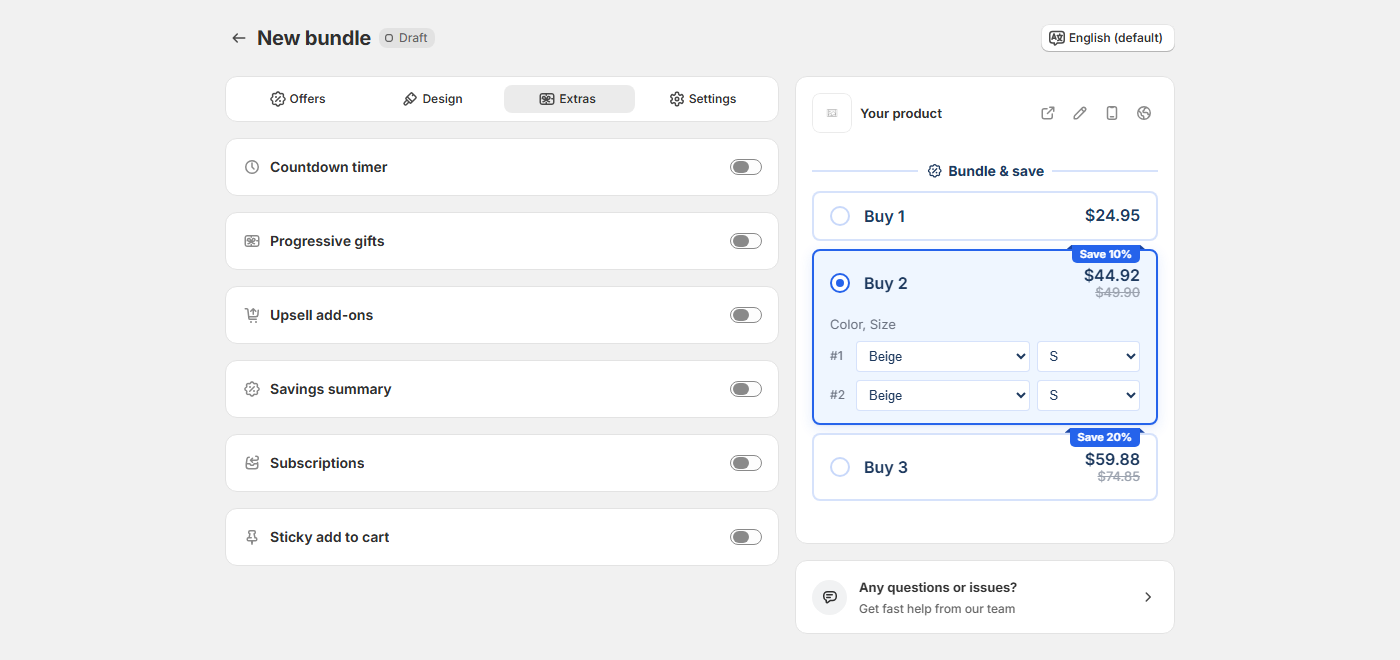
Add upsells under every offer
- Open the bundle in SMART Discounts and go to the Extras tab.
- Switch on Upsell add-ons. The product picker opens, and each product you pick becomes a row. If you cancel the picker, the switch stays off.
- Set the Block title, the heading over the rows. The Bundle with upsells template uses "Complete your order". Leave it empty for no heading.
- Open a row and set Quantity, Discount (Percentage off, Amount off each item, Fixed price per item or No discount; new rows start at 10% off) and Value. Change product and Edit variants change what is sold.
- Edit Title (default {{product_title}}), Subtitle and Checkout name (empty means the same as the title).
- Choose Pre-selected (ticked on new rows) and Show quantity selector, which lets the shopper choose 1 up to the row's Quantity.
- Click Add upsell for more rows, then Save.
Add an upsell to one offer
On the Offers tab, open an offer and click Add upsell. It shows as a band on that offer card, with the same fields as above plus Show only when the offer is selected. Unticked, it also shows on the card while another offer is selected.
Look
On the Design tab > Element styles > Gifts and upsells, Upsell layout sets the control: Checkbox, Tick only or Toggle, plus colors. Row borders are on the Upsell add-ons card's Style tab.
How checkout prices upsells
- Only the upsell line. The discount goes to the line the widget added as that upsell, up to its Quantity. The same product added another way pays full price.
- Only while an offer applies. A row under every offer needs any offer of the bundle to apply at checkout; a Buy 1 tier with No discount counts. An upsell on one offer needs that offer, or a higher tier of the same kind for Quantity breaks and Mix and match.
- Never counted toward offers. Upsell lines don't raise a quantity tier, fill a set or count toward progressive gift steps.
- One-time only. Upsell lines are always one-time purchases, even when the offer is a subscription.
Edge cases
- A sold-out upsell isn't shown and isn't added, even if it was ticked.
- On an offer card that isn't selected, a click on the upsell selects that offer first.
- Upsells are the products you pick. The app doesn't suggest products for you.
- To sell a different product instead of the page product, use an Alternative product offer. To give a product away, use Progressive gifts.
More on upsells: Upsells and extras and Product page upsells on Shopify.
Add upsells under your bundle offers
SMART Bundles App & Upsells is free on the Shopify App Store, with upsell add-ons and every other extra included.
Install free on ShopifyFrequently asked questions
›Why did the upsell product charge full price?
The upsell discount applies only to a line the widget added as that upsell, up to its Quantity, and only while an offer of the bundle applies. The same product added from its own page pays full price.
›Do upsells count toward the bundle quantity?
No. Upsell lines never count toward an offer's quantity or a gift step.
›Can an upsell be a subscription?
No. Upsells are always one-time purchases.