
How to add product page upsells on Shopify
Updated · SMART Bundles App & Upsells (E-TRADE PARTNER)
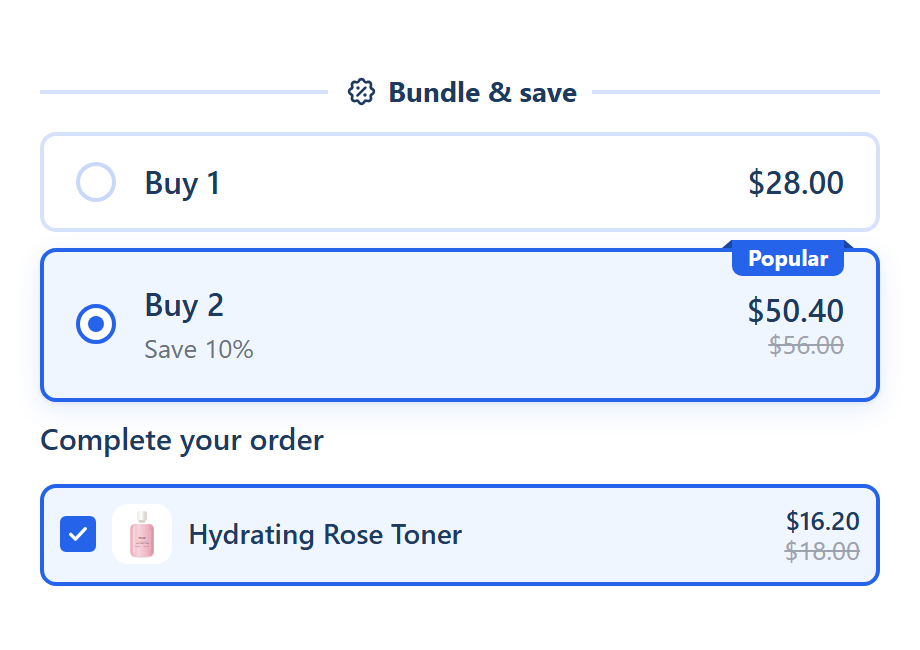
Shopify's Search & Discovery app can show up to 10 hand-picked complementary products on a product page, with an optional quick add button, and a separate Buy X get Y discount can lower an add-on's price once both items are in the cart. SMART Bundles App & Upsells puts the deal in the product page widget: tick-box Upsell add-ons under the offers, a Complete the bundle offer (this product plus set products for one price) and an Alternative product offer, each priced at checkout by the app's discount.
SMART Bundles App & Upsells is a free Shopify app for bundles, quantity breaks, free gifts and upsells.
Try it freeOn this page
Shopify's built-in way: complementary products
Shopify's Search & Discovery app handles product recommendations (Customize product recommendations):
- Related products are similar items, generated automatically for every product. You can't edit the generated list, but you can add your own picks.
- Complementary products are items often bought in addition to a product. You choose them by hand, up to 10 per product. Shopify's best practice is to pick products that cost the same as or less than the original.
- They show through a complementary products block in the product information section, which only compatible themes have. A product page can hold one such block. Its heading and layout come from your theme; it shows 1 to 10 products, 1 to 4 per page.
- Products must be Active, and complementary products need stock above 0 to show.
- With the block's Enable quick add button setting on, shoppers can add a product to the cart from its card.
Adding a price deal
The block's settings cover which products show and how many. For an add-on deal, pair it with a Buy X get Y discount: Customer buys the main product, Customer gets the add-on at a percentage or amount off. Customers add both items themselves, and the saving shows up in the cart and at checkout. Each such automatic discount counts toward Shopify's limit of 25 active automatic discounts, app discounts included (Automatic discounts).
Three upsell tools in SMART Bundles
| Tool | Where it shows | What the shopper does | How it's priced |
|---|---|---|---|
| Upsell add-ons | Rows under the offers, or a band on one offer card | Ticks an add-on; it goes into the cart with the offer | The add-on's own discount, only on the line the widget added as that add-on, while an offer applies |
| Complete the bundle | An offer card with this product plus up to 5 more (6 in total) | Picks variants; the products are fixed | One bundle price or a discount per product, on complete sets only |
| Alternative product | An offer card for a different product | Buys that product instead of the viewed one | Only the lines added through that card |
Upsell add-ons
- For every offer: Extras tab > Upsell add-ons. Switch it on, pick products, and give the block a Block title (leave it empty to show no heading).
- For one offer: open the offer and click Add upsell. Show only when the offer is selected keeps it on that card; unticked, it also shows on offers that aren't selected.
- Each add-on has a product, Quantity, an optional discount, Title, Subtitle, Checkout name, Pre-selected and Show quantity selector.
- Look: Design tab > Element styles > Gifts and upsells, Upsell layout Checkbox, Tick only or Toggle.
- The Bundle with upsells template starts with Quantity breaks and checkbox add-ons titled "Complete your order".
Pricing rules: the add-on discount goes only to the line the widget added as that add-on, up to its quantity, and only while a bundle offer applies. The same product added on its own pays full price. Add-on lines never count toward an offer's quantity, and add-ons are always one-time purchases. Details: Upsell add-ons.
Complete the bundle
- Add another offer > Complete the bundle ("This product plus specific products, one price"). Add another product adds slots, up to 6 products in total.
- Per product: Quantity, Pre-selected variant, Show price, Name shown in the bundle, Tag (optional) and Image (optional). Tick Different discount per product to price each one.
- Only complete sets are discounted. A set that loses an item loses the whole bundle price, and the discount repeats for each complete set.
- The offer is hidden on the pages of the products you added to it, and while one of them is sold out.
- Shoppers choose variants but can't swap the products. If they should choose the products, use Mix and match.
More: Complete the bundle and Complete the bundle offer.
Alternative product
- Add another offer > Alternative product ("Offer a different product instead of this one"). Pick the product, a quantity and a discount.
- The Alternative product template sets "This product" next to the other product, with an "Upgrade" badge.
- The discount applies only to lines added through that card. The alternative product added on its own pays full price.
See Alternative product offer.
Set it up
- Turn on the app embed: theme editor > App embeds > Deal widget from SMART Discounts > Save (Turn on the app embed).
- In SMART Discounts, click Create new discount and pick Bundle with upsells, Complete the bundle or Alternative product.
- Under Show this bundle on, choose the products or collections the widget should appear on.
- Add your add-ons, products and discounts, and watch the live preview.
- On the Settings tab, check Combines with. All three classes are on for new bundles.
- Click Create (the bundle goes live right away), then open a target product. The widget places itself above Add to cart, or where you put the Bundle widget app block (Place the bundle widget).
What SMART Bundles doesn't do
- No automatic recommendations or "frequently bought together". You pick every add-on, gift and bundle product by hand.
- No upsells in the cart, cart drawer or checkout, and no post-purchase offers. The widget lives on product pages, plus the Bundle widget for a chosen product block for other pages such as the homepage.
- The sticky add to cart bar scrolls to the widget. It doesn't add to the cart.
- One bundle per product page. If two bundles target a product, the page shows one of them.
Edge cases
- The main items leave the cart: when no offer applies any more, the add-on pays full price.
- A sold-out add-on isn't shown in the widget, so it can't be added to the cart.
- Another discount on the same item: two product discounts can share a line only on Shopify Plus with matching discount tags, which SMART discounts don't set, so the better one applies (Discount combinations). See Combine discounts on Shopify.
- Theme add to cart: the widget uses your theme's own Add to cart button and posts the add-on lines with it.
Sell the add-on next to the product
Install SMART Bundles App & Upsells and start from the Bundle with upsells template. It's free, with every feature included.
Install free on ShopifyFrequently asked questions
›Can the add-on be discounted only when it's bought with the main product?
Yes. The upsell discount applies only to the add-on line the widget added, and only while a bundle offer applies. The same product bought on its own pays full price.
›Does the app pick upsell products automatically?
No. Every add-on, gift and bundle product is chosen by you in the bundle editor. For automatic suggestions, Shopify's Search & Discovery app generates related products.
›Can an add-on be a subscription?
No. Add-ons are always one-time purchases, even when the bundle offers Subscribe and save for the main product.