
Cart discounts: Volume, Order goal, Shipping and Advanced
Updated · SMART Bundles App & Upsells (E-TRADE PARTNER)
Besides bundles, SMART Bundles creates discount types that work only in the cart and at checkout: Volume discount, Order goal, Shipping discount and Advanced discount, plus Buy X get Y. Each can be automatic or a code and limited to customer segments; all but Advanced discount can also be limited to markets. Nothing shows on the product page.
SMART Bundles App & Upsells is a free Shopify app for bundles, quantity breaks, free gifts and upsells.
Try it freeOn this page
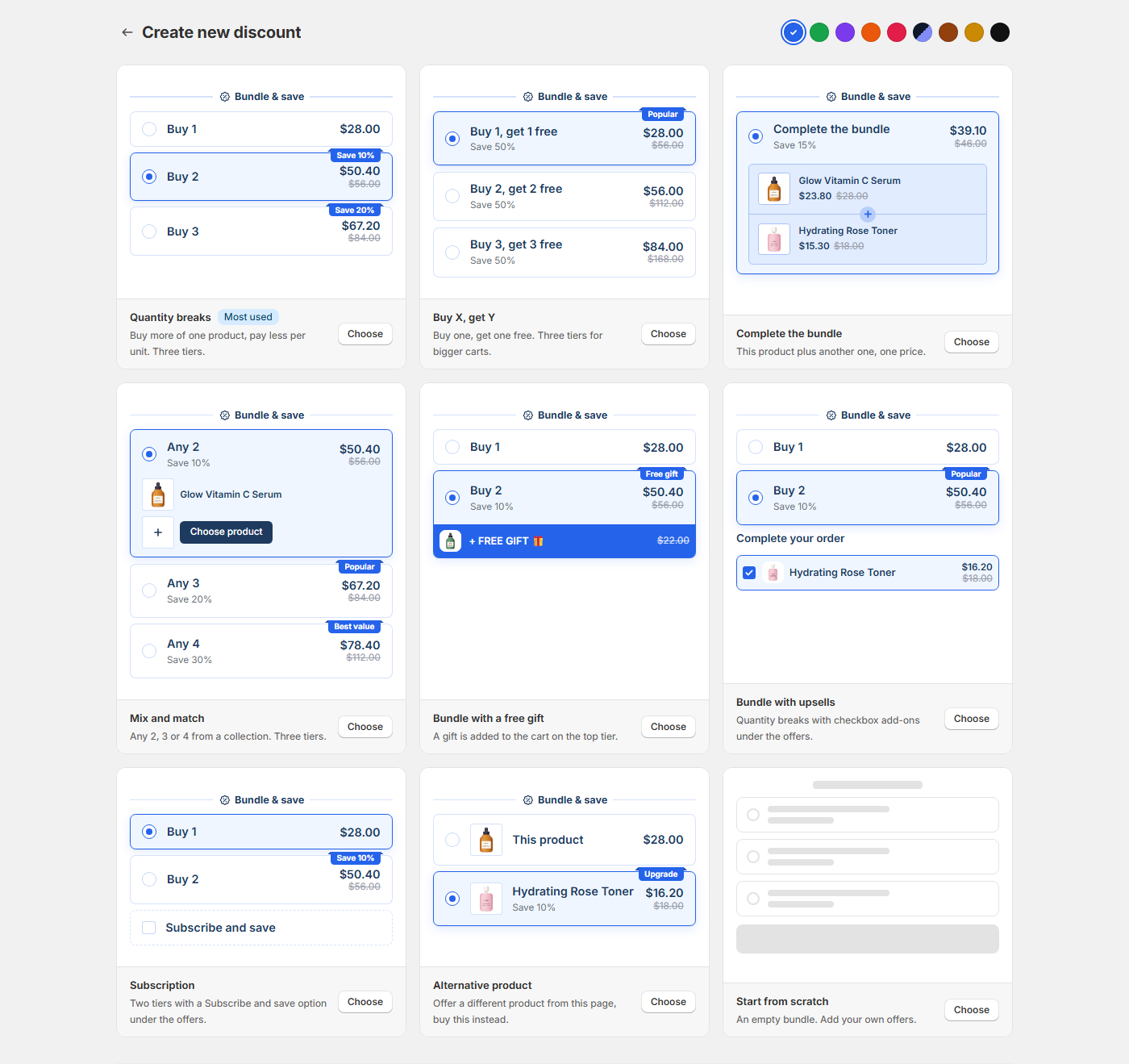
You find them under Create new discount > Other discount types, which the app describes as: "These apply in the cart and at checkout, automatically or with a code. Nothing shows on the product page." Each is a Shopify discount Function, so it runs inside Shopify's own cart and checkout. Buy X get Y has its own page: Buy X, get Y.
Settings every type shares
- Application method: Automatic or Code, fixed once the discount is created. A code discount has one code, typed in or made with Generate, and a Maximum discount uses card: "Limit number of times this discount can be used in total" and "Limit to one use per customer".
- Eligibility: All customers, Customer segments or Markets (the Advanced discount editor has no market list, so use segments there).
- Conditions (Volume, Order goal, Shipping and Buy X get Y): a Customer rule (has any tags, has none of tags, has all tags) and a Location rule by country (is any, is not any).
- Purchase types: Applies on one time purchases, Applies on subscription purchases and a Recurring cycle limit.
- Combines with: Product discounts, Order discounts and Shipping discounts (a Shipping discount has no Shipping discounts box and doesn't combine with other shipping discounts). Shopify combines two discounts only when each allows the other's class (Shopify Help Center).
- Active dates: one start and an optional end.
Volume discount
"This discount type allows you to provide a discount based on the amount of products being purchased." Use it for tiers that apply in the cart, by quantity or by spend.
- Based on: Product quantity or Product price.
- Any items from: Products, Products other than, Variants, Variants other than, Collections, Collections other than or All products, with a Purchase type. Unlike a bundle, it can target single variants.
- Exclude products with compare at price (already on sale).
- Group by: All products (everything counts together), Product or Variant (each reaches its tier on its own).
- Tiers, up to 10: Required quantity (or Required amount), Discount label, and Percentage off, Amount off per item or Fixed price per item.
- One tier applies: the highest reached, on every qualifying unit of the group.
Order goal
- "This discount type allows you to provide a goal for your customers to reach": an order discount once the cart reaches an amount.
- Tiers, up to 10: Required amount, Discount label, and Percentage off or Amount off the order.
- Products excluded from discount: "These products will be excluded from the discount when calculating it." Excluded items don't count toward the goal either.
- There is no progress bar or "spend X more" message on the storefront.
Shipping discount
- Purchase requirements: No purchase requirements, Minimum order amount or Minimum quantity.
- Rate names (contains or is): "If no rate names are added, the discount will be applied to all shipping rates."
- Rate types: Shipping, Local delivery, Pickup point, Local pickup and Retail.
- Discount: Percentage, Amount off or Fixed price, with Add discount cap and a Discount label.
- Ticking Shipping discounts under Combines with on another discount doesn't make shipping free. It only lets a separate shipping discount apply alongside it.
Advanced discount
"Combine order, product, and shipping discounts into one, applied together at checkout." It's a rule builder for cases the other types don't cover.
- Product groups from All products, Specific product(s), Specific variant(s), Specific collection(s), Product tag, Has selling plan (subscription based), SKU, Has compare at price (on sale), Price per single quantity, Compare at price per single quantity, Product quantity or Variant quantity. Text rules include contains, starts with and matches regex.
- Actions: Add product discount (Percentage off, Amount off, Fixed amount or Volume discount tiers, with Apply to first X amount of products, Application order and Apply based on compare at price), Add order discount (with Exclude product groups (from calculation)) and Add shipping discount (with Delivery method names and Delivery method types).
- Conditions on each action: Customer tag, Product group total, Product group quantity, Country, Language, City, State/province, Postal code and Compare product groups. Every condition must be true; "If no conditions are added, the discount will always apply."
- One discount, several classes. Shopify lets one function apply product, order and shipping savings together (Discount Function API). Such a discount combines only with discounts that allow all of its classes (Shopify Help Center).
- A size bar shows how much of the 10 KB configuration limit your rules use. The settings live in a metafield, Shopify doesn't pass metafields over 10,000 bytes to a function, and list inputs can't exceed 100 elements (Shopify developer docs). The app refuses to save a discount over either limit instead of saving one that never applies.
Shopify rules that apply to all of them
- 25 automatic discounts. A store can have at most 25 active automatic discounts, app discounts included. The app shows "Only 25 automatic discounts can be active at once." when you hit it.
- Order of calculation: product discounts first, then order discounts on the revised subtotal, then shipping.
- Codes per order: customers can use up to 5 product or order discount codes and 1 shipping discount code on one order.
- No stacking without permission: when discounts can't combine, Shopify applies the best one for the customer's cart. Several product discounts on the same line item need Shopify Plus and matching discount tags, which the app's editors don't set.
Source for all four: Combining discounts, Shopify Help Center.
Limits
- Nothing on the product page. For tiers shoppers can see and pick, use a Quantity breaks bundle.
- One code per discount, set by hand. No bulk, prefix or wildcard codes.
- One schedule. One start and end per discount; no repeating daily or weekly windows.
- Shopify's checkout only. Checkouts that replace Shopify's own don't run these discounts.
How to set it up
- In SMART Discounts, click Create new discount and pick a type under Other discount types.
- Enter the Discount name, choose Automatic or Code, and fill in the rules and tiers.
- Set Eligibility, Combines with and Active dates, then click Create.
Step-by-step help: Volume discounts, Order goal discounts, Shipping discounts, Advanced discounts, Automatic or code, and schedules and Customer eligibility.
Related guides
- How to combine discounts on Shopify
- Shopify discount not applying: a checklist
- Tiered discounts after Shopify Scripts
- How to set up quantity breaks on Shopify
Set up your cart discounts
Install SMART Bundles and create a Volume, Order goal, Shipping or Advanced discount. Every type is included in the free plan.
Install free on ShopifyFrequently asked questions
›Can one customer use an automatic discount more than once?
Yes. Usage limits and Limit to one use per customer exist only on code discounts. Create a code version to limit repeat use.
›Why doesn't my code stack with the automatic discount?
Both discounts must allow combining with each other's class in Combines with. If they can't combine, Shopify applies the better one for the customer.
›Can I switch a discount from automatic to code?
Not after it's created. Click Duplicate, pick the other method on the copy, save it, then deactivate the original.